

Claude Code Terminal vs. Claude Code Desktop: Which One To Choose?
6 differences between Claude Code terminal and desktop app and a rule for picking the right one.

As soon as Claude Code came out, I’ve only been using it in my terminal. It’s been months and months, and Anthropic kept working on their Claude Code in Desktop. It kept getting better, but I was still ignoring it.
The “GUI vs. TUI” talk on social media has been heating up. For reference, GUI is a graphical user interface, TUI is a terminal user interface. Some people prefer one over the other.
Both built with a little bit of a different purpose.
I’ve decided to put both to the test April 2026 redesign and see how they compare, and see why people like the GUI version better vs. the TUI one. I came up with 6 comparison points:
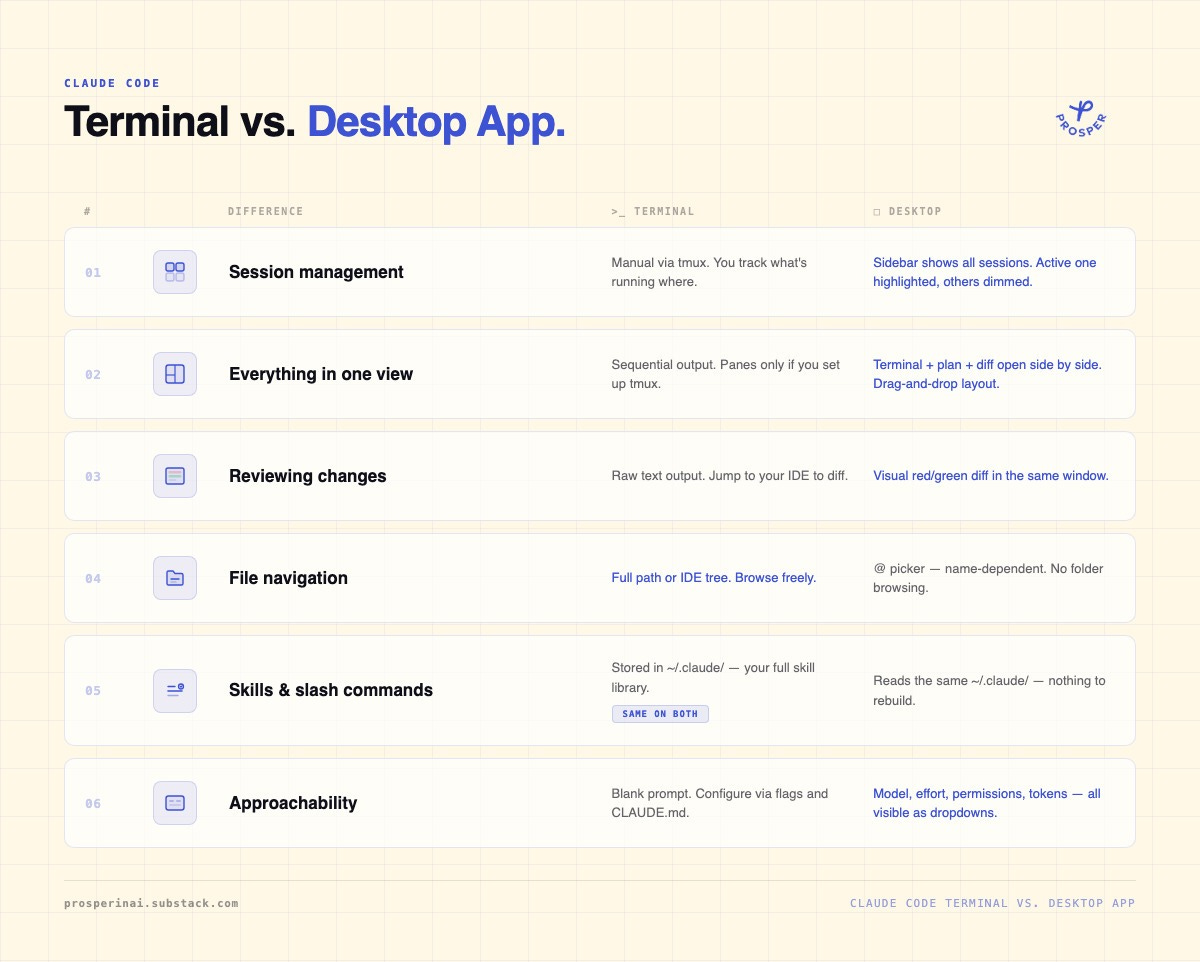
Let’s dig into each one.
Session management in the Claude Code desktop app
The desktop app has a sidebar. You can also pull multiple sessions onto the main screen at once and watch what Claude is doing in each one in real time.
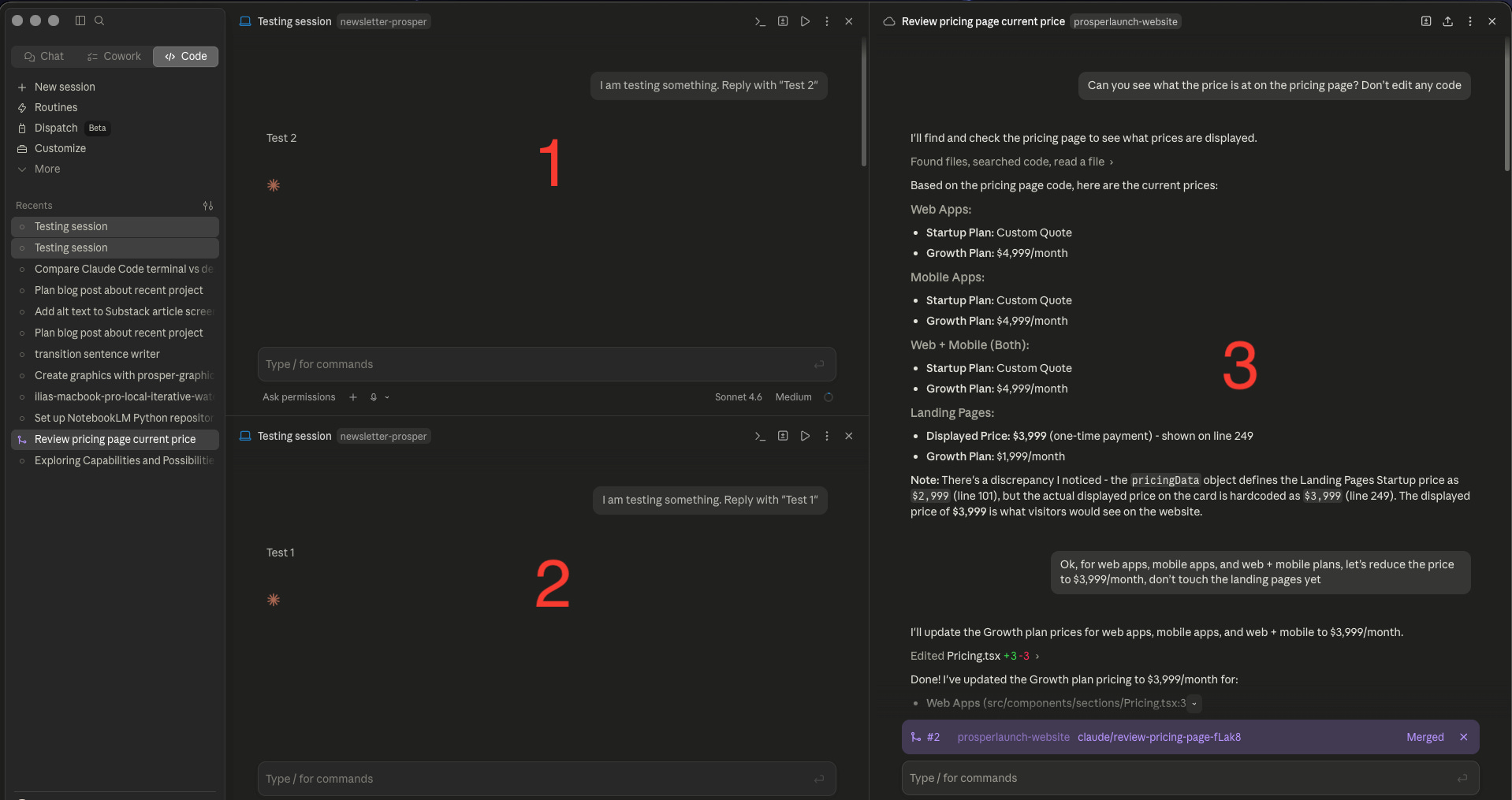
The session you’re working in is highlighted. The others are dimmed. At a glance, you know where you are across multiple sessions without keeping it in your head.
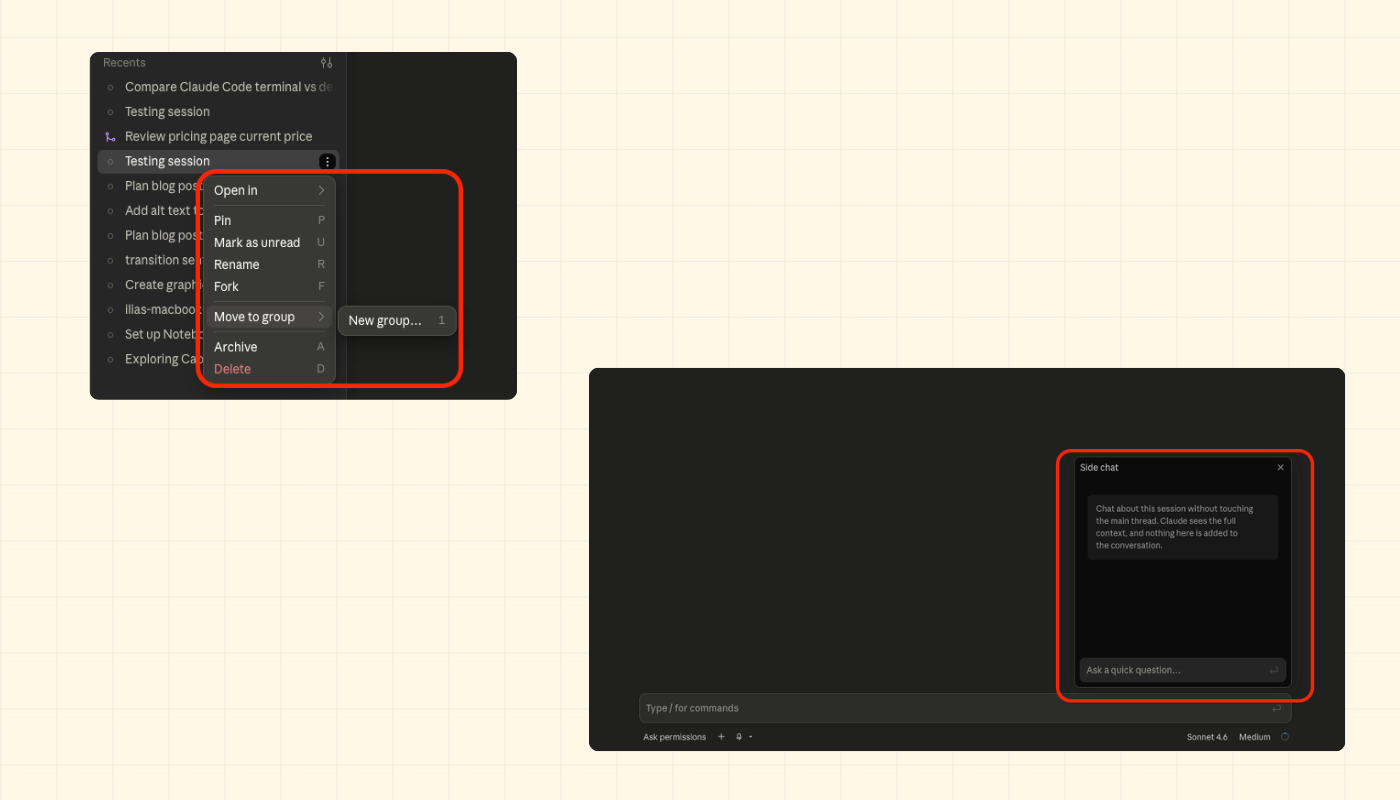
The desktop also adds “Command + ;”, a side-chat shortcut that lets you branch a quick question off a running task without feeding extra context back into the main session. I’d say it acts as a “/btw” command in terminal Claude Code. You can filter sessions by project or status, group them, or pick up something that ran yesterday.
In the terminal, you manage all of this manually. Most people doing parallel work use tmux, separate panes, separate windows, separate agents. It works well, but you carry the awareness yourself. There’s no native view of what’s running where.
I personally still struggle mentally with running multiple agents at once, but I did like the look of it in Claude Code desktop.
Panes, plans, and diffs in one window
The desktop puts things together that the terminal keeps separate.
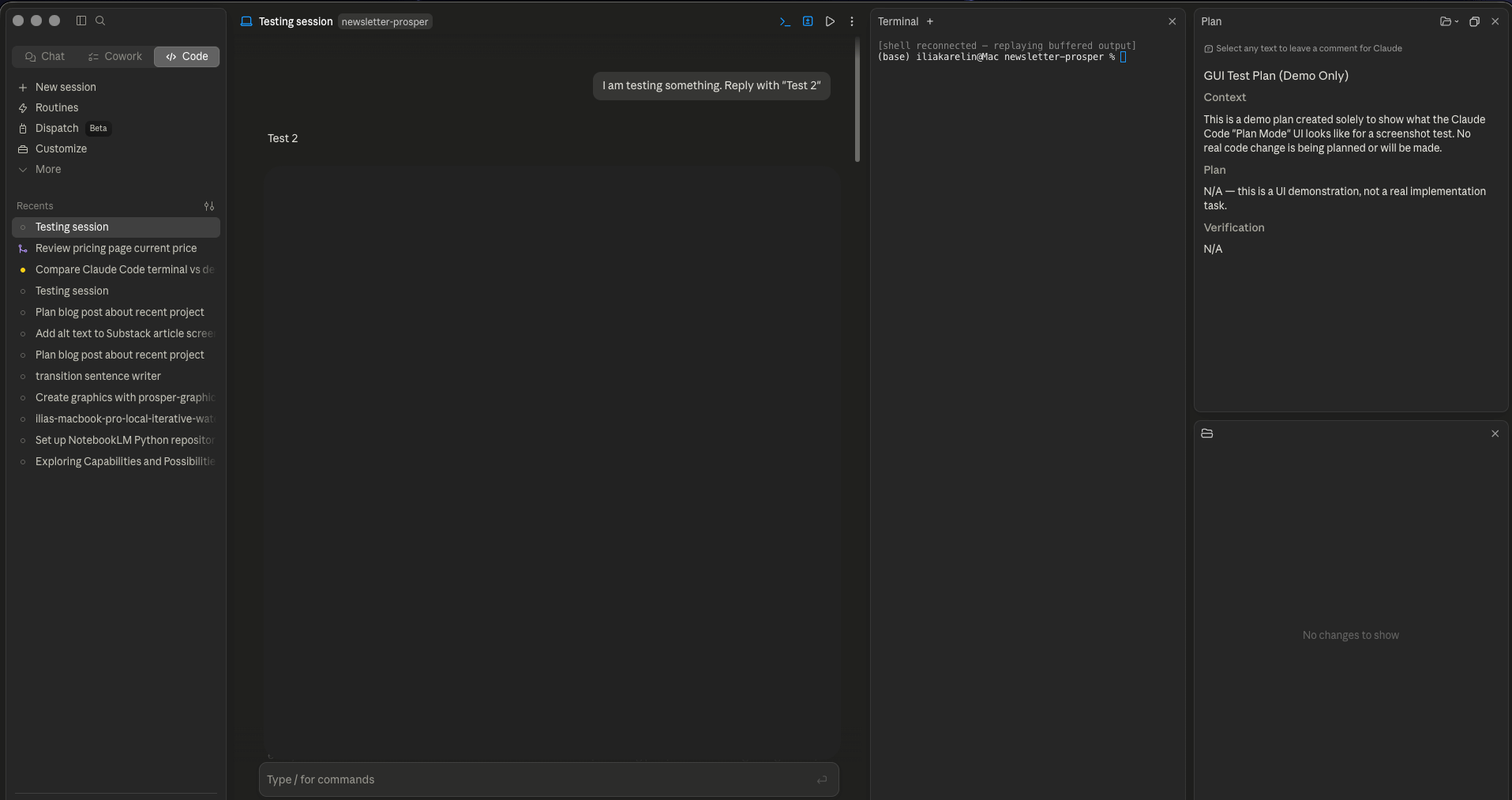
In that screenshot: a terminal running in one pane, Claude’s plan visible alongside it, and a diff open showing recent changes. All in one window. You can drag the panes around to arrange things how you want.
In the terminal, you get output sequentially. Everything is there, it’s just not organized for you. If you want a side-by-side view of a plan and a diff, you build it yourself in tmux.
For watching what Claude is doing across a session, the desktop is easier. For passing output somewhere else or scripting around what Claude produces, the terminal is the only option.
The review experience
When Claude changes a file in the desktop app, you get a visual diff.
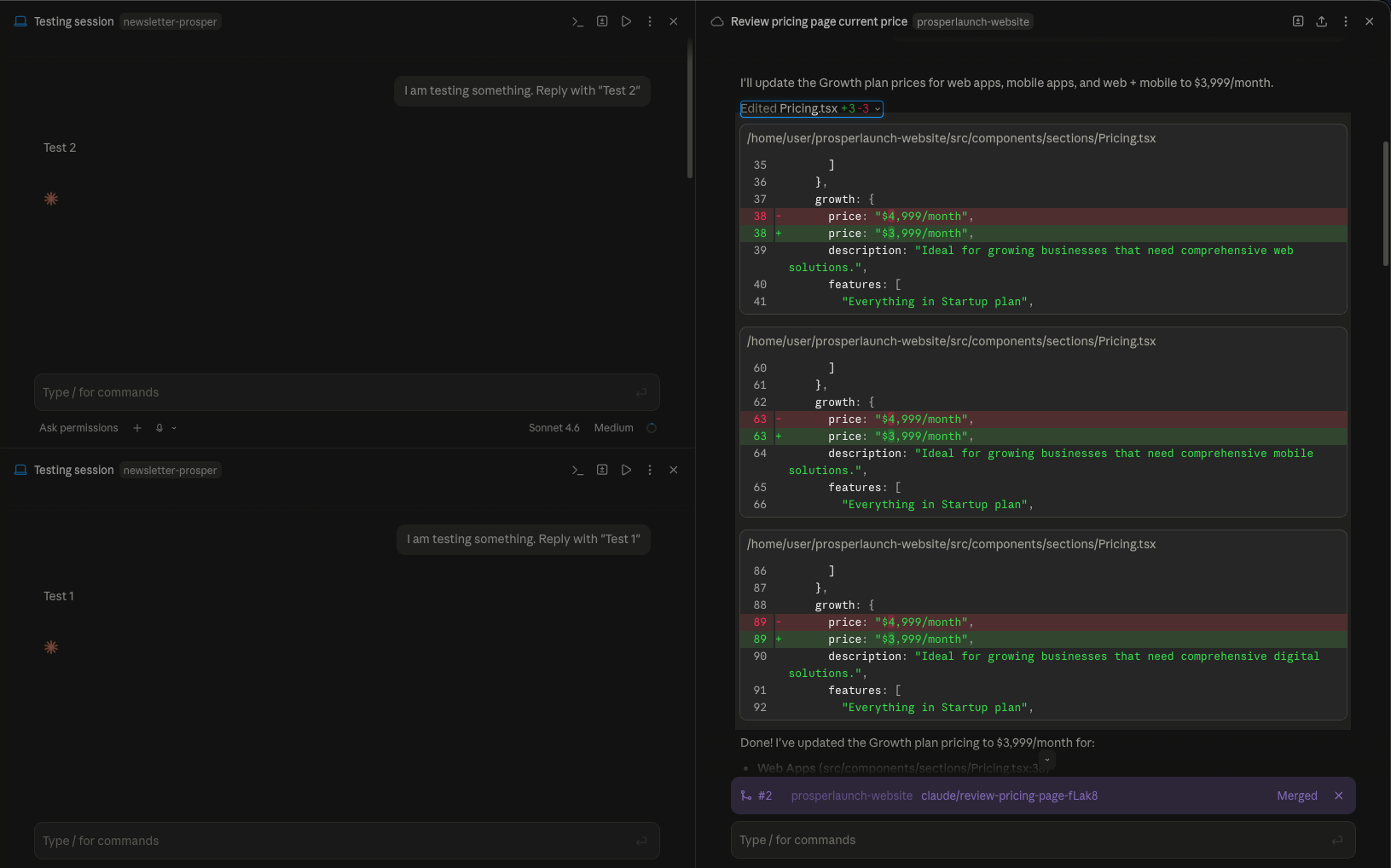
Red lines are what was removed. Green lines are what was added. You can scan it in a few seconds. You get a bit of a nicer look of how many lines were added and changed, you can toggle it and hide it.
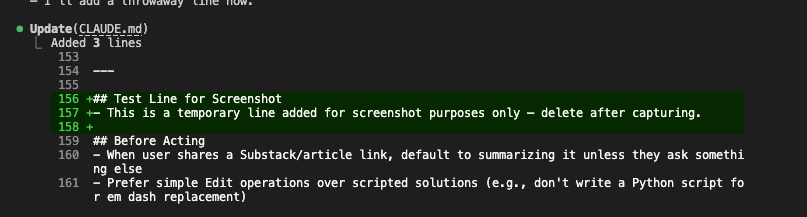
In the terminal, you get more of a raw output, plus you get what was added and removed.
For small changes, both are fine. For larger changesets, Claude rewrites three files at once, so the desktop diff viewer is much easier to review before you approve anything. The terminal output works, but it takes more effort to parse when the changes are spread across multiple files.
File navigation: the @picker vs a real file tree
The desktop app has “@” for referencing files in the chat. Type “@” and start typing a filename.
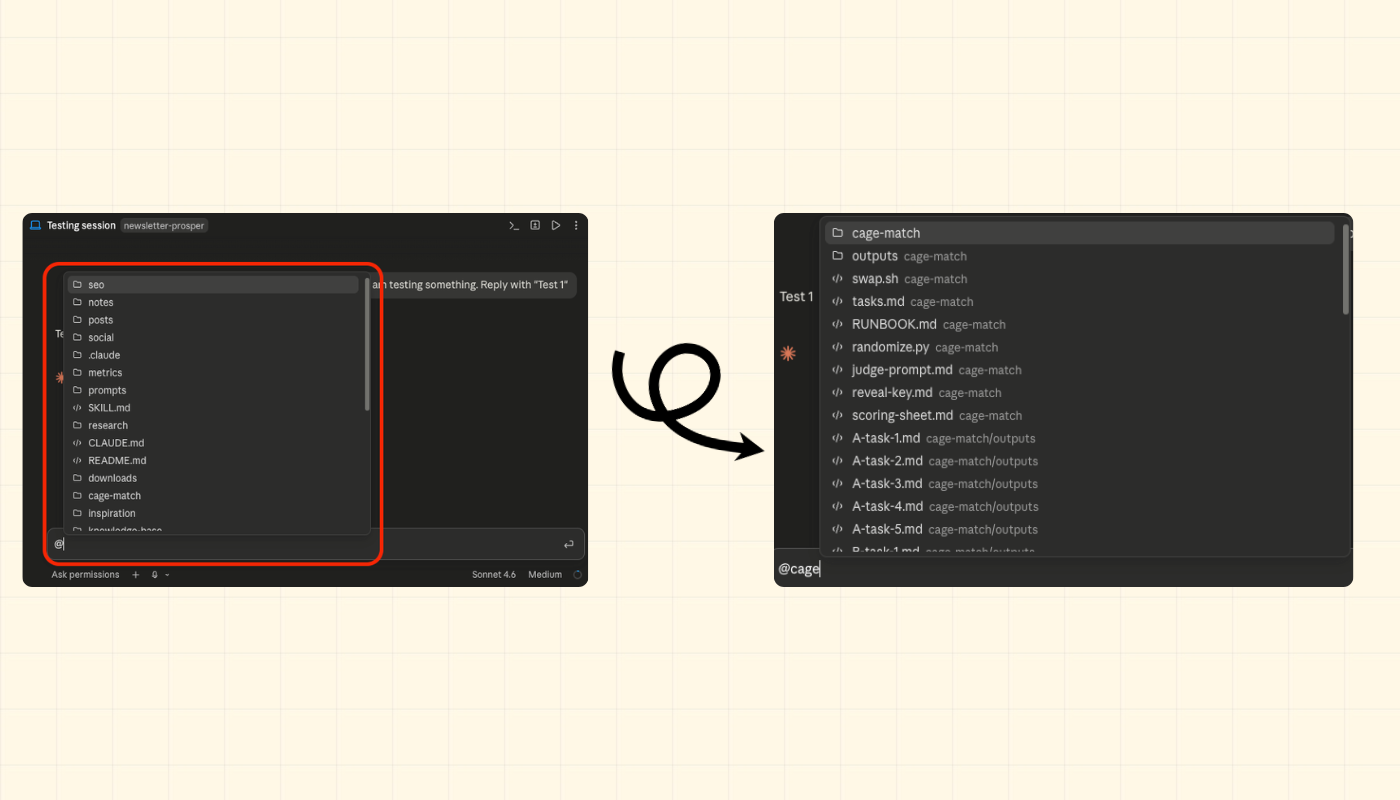
The problem that I found: it only searches by name. If you don’t know the exact filename, it’s disorienting. You can’t browse the folder structure. You can’t navigate visually. You’re guessing at names until something matches.
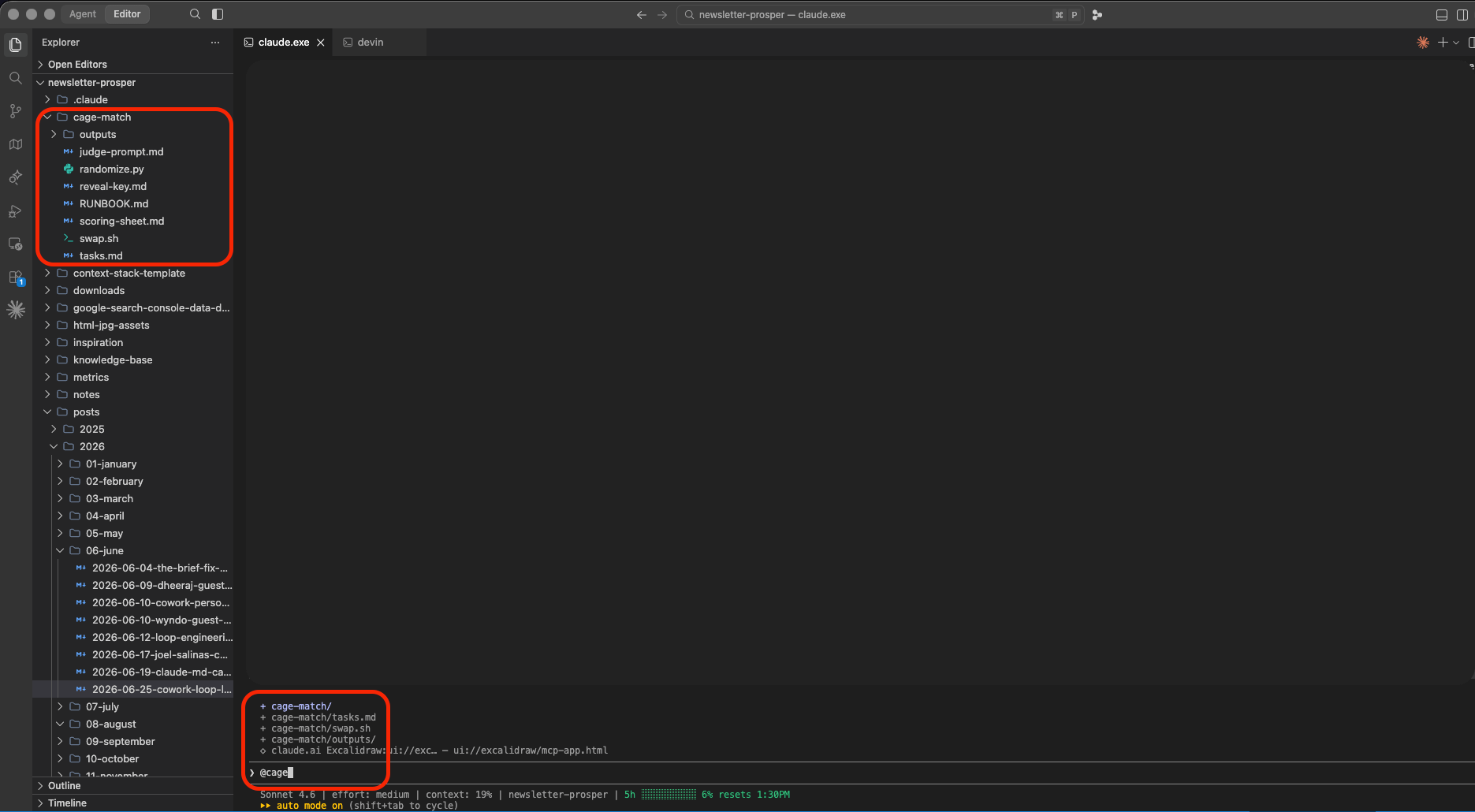
In an IDE, you see everything laid out. Every folder, every file, in order. You find things by navigating AND by naming.
This is one place where the desktop app feels incomplete compared to working in an IDE alongside the terminal. Not a dealbreaker for most sessions, but if you’re often referencing files you can’t immediately name, the “@” picker slows you down.
Do custom skills work in the Claude Code desktop app?
I expected this to be a big limitation.
Every skill I’ve built in the terminal, every slash command, every custom workflow shows up in the desktop app too (assuming because of how .claude folder is structured). Type “/” in the desktop chat and you get the same list.
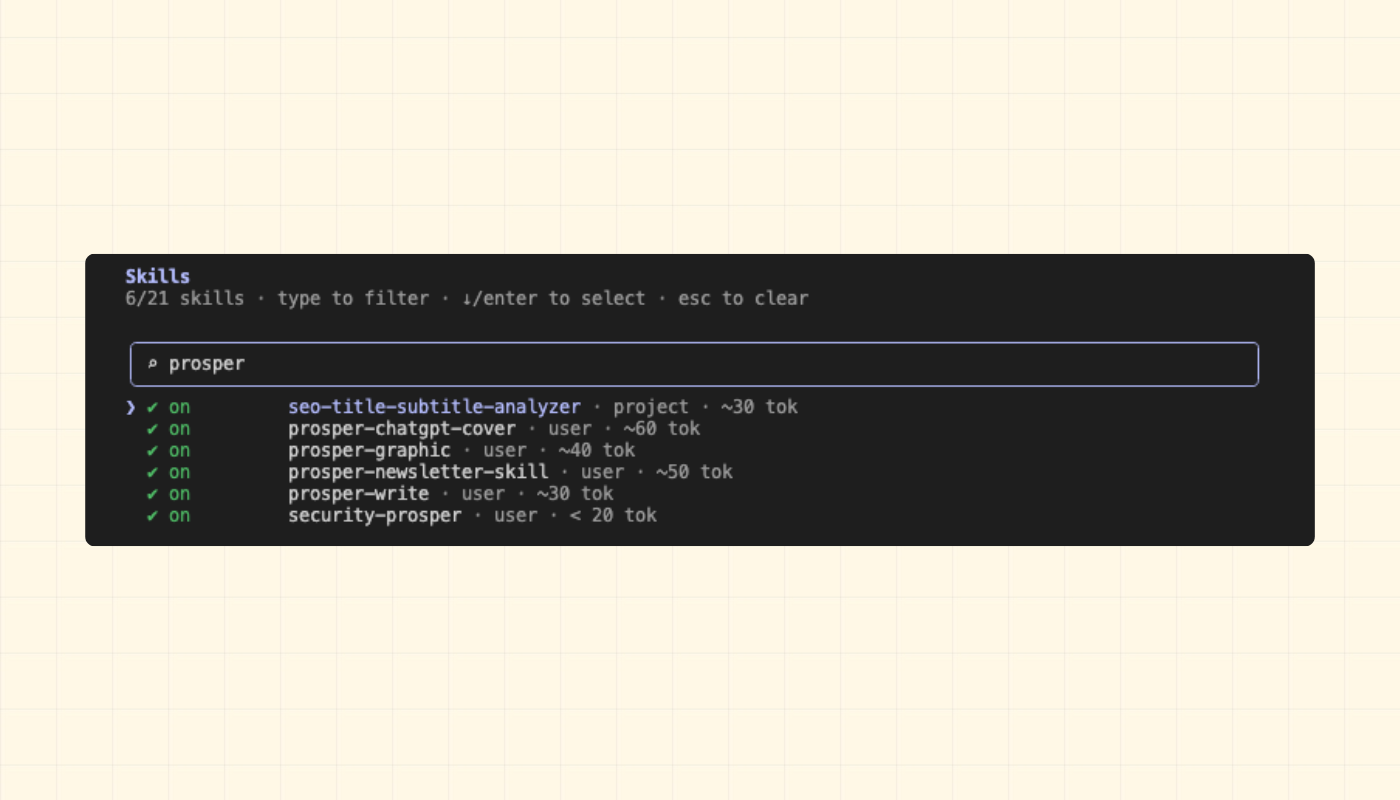
And to my surprise…
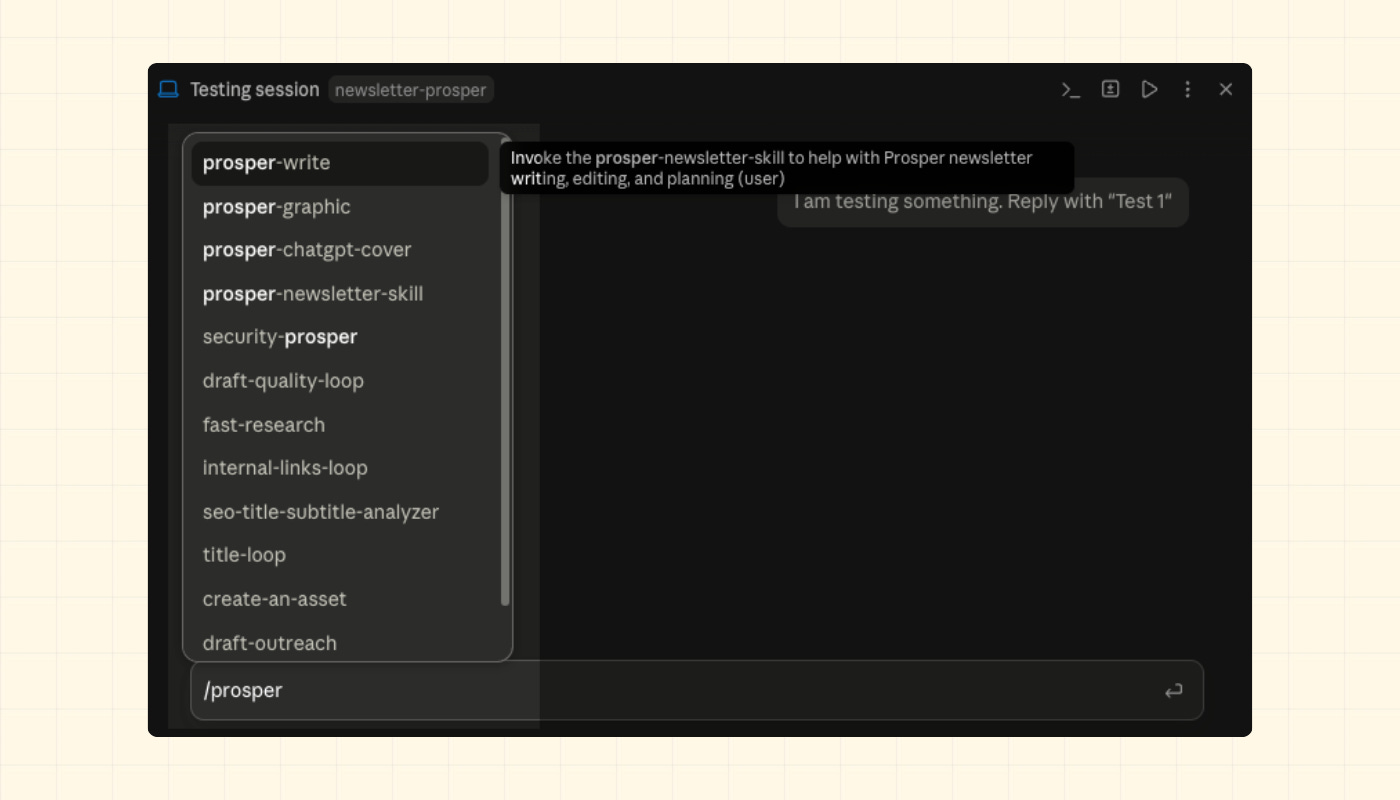
All the skills were visible in Claude Code Desktop!
If you’ve spent time building custom skills for the terminal, you don’t lose any of that when you switch to the desktop. The two surfaces share the same skill layer.
If you haven’t built skills yet, how skills, commands, and agents relate to each other is the place to start:

Claude Code Approachability
The thing with terminal sessions - it kind of starts with a blank slate. Well, technically it’s not blank, but it’s just a prompt, a cursor, and whatever context you’ve set up in CLAUDE.md.
I use a five-layer context stack for Prosper, but you can start with one file:

With the desktop app, you get a visual interface that shows you all the options right away before you even send the first message.
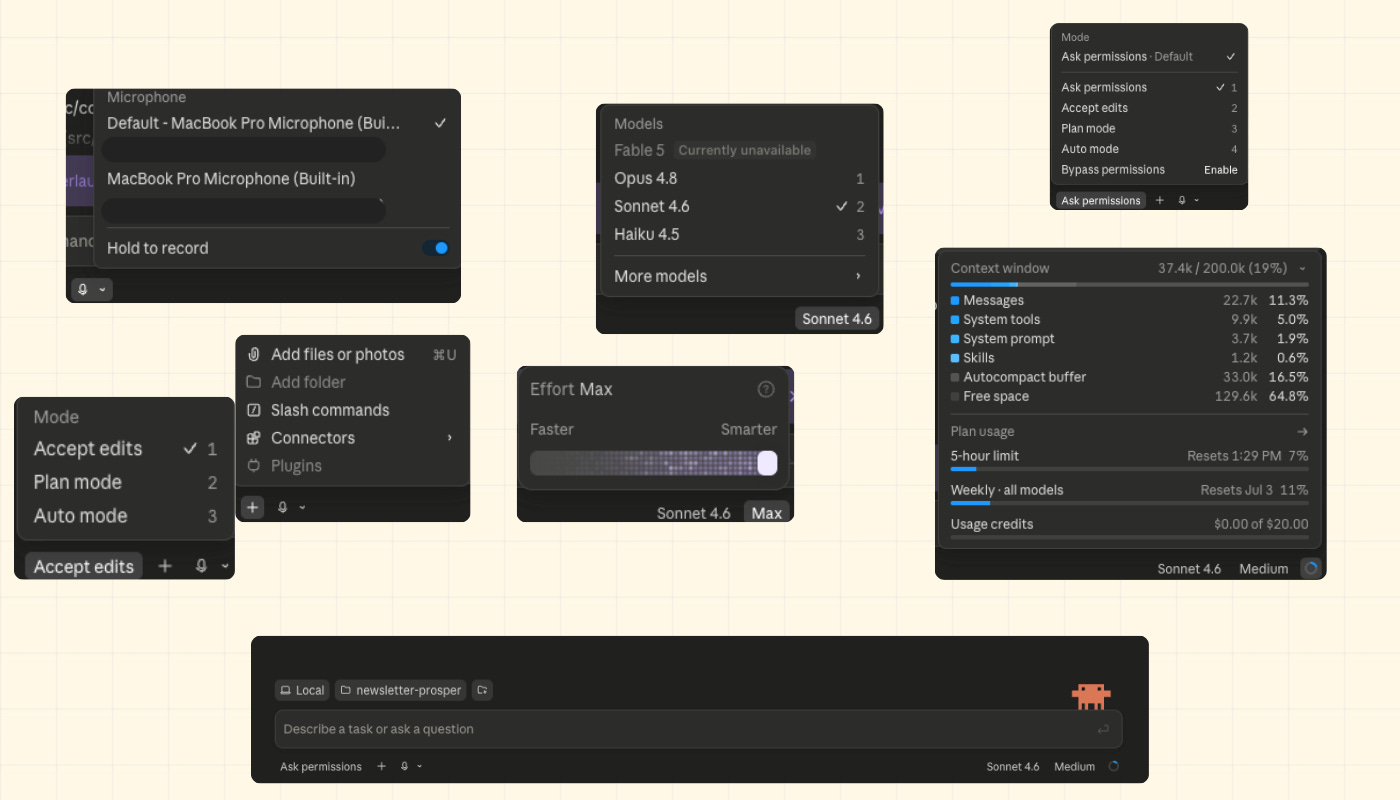
The desktop has all of this exposed without you writing some sort of a command. Model selection is a dropdown. Effort is a toggle. Permissions mode is a menu. Token usage is visible in the corner. You can see the state you’re in without knowing any flags.
For developers who’ve used the terminal for a while, this looks like optional hand-holding. For a PM, a non-technical founder, or anyone coming to Claude Code for the first time, it removes a real barrier. The configuration isn’t hidden behind flags you have to know to look for.
Claude Code terminal or desktop: which to choose
The terminal and the desktop solve different phases of the same work.
Use the desktop when you want visibility: multiple sessions running at once, reviewing what Claude changed before accepting it, orienting yourself in a new project. Use the terminal when you want control: scripting, output piping, flags the GUI doesn’t expose, raw speed.
The thing that surprised me most: the skills you build in the terminal show up in the desktop automatically. Whatever you’ve already invested in custom workflows isn’t siloed. That’s a better handoff than I expected from two surfaces that feel this different from each other.
For me personally, I am planning on staying with the terminal Claude Code, but I will be definitely trying the Claude Code desktop app. It has improved a ton and I like some aspects of it, it’s easier on the eye. I also like the diff look and the ability to run multiple sessions at once.
If you’re just starting out working with AI and want to try out tools like Claude Code or Codex, the GUI interface should definitely be your go-to.
Thank you so much for reading,
Ilia
More posts you might like
Loop Engineering: 7 Levels From Prompting to Loops - how I think about building progressively more autonomous Claude workflows, from a single prompt up to a fully scheduled loop.

CLAUDE.md Context Files: The Three Types Framework - not all context files are equal. Here’s the framework I use to decide what goes where.

How to Run Claude Loops in Cowork (No Terminal Required) - if you’re on the desktop side and want to go deeper on automation without touching the CLI.

Great post! I'm a Claude Code user and still learned from this article. For instance, I had no idea the desktop app now as Groups!