

How to Run Claude Loops in Cowork (No Terminal Required)
3 loops that check their own output before you see them. Plus 25 ideas you can steal for any workflow.

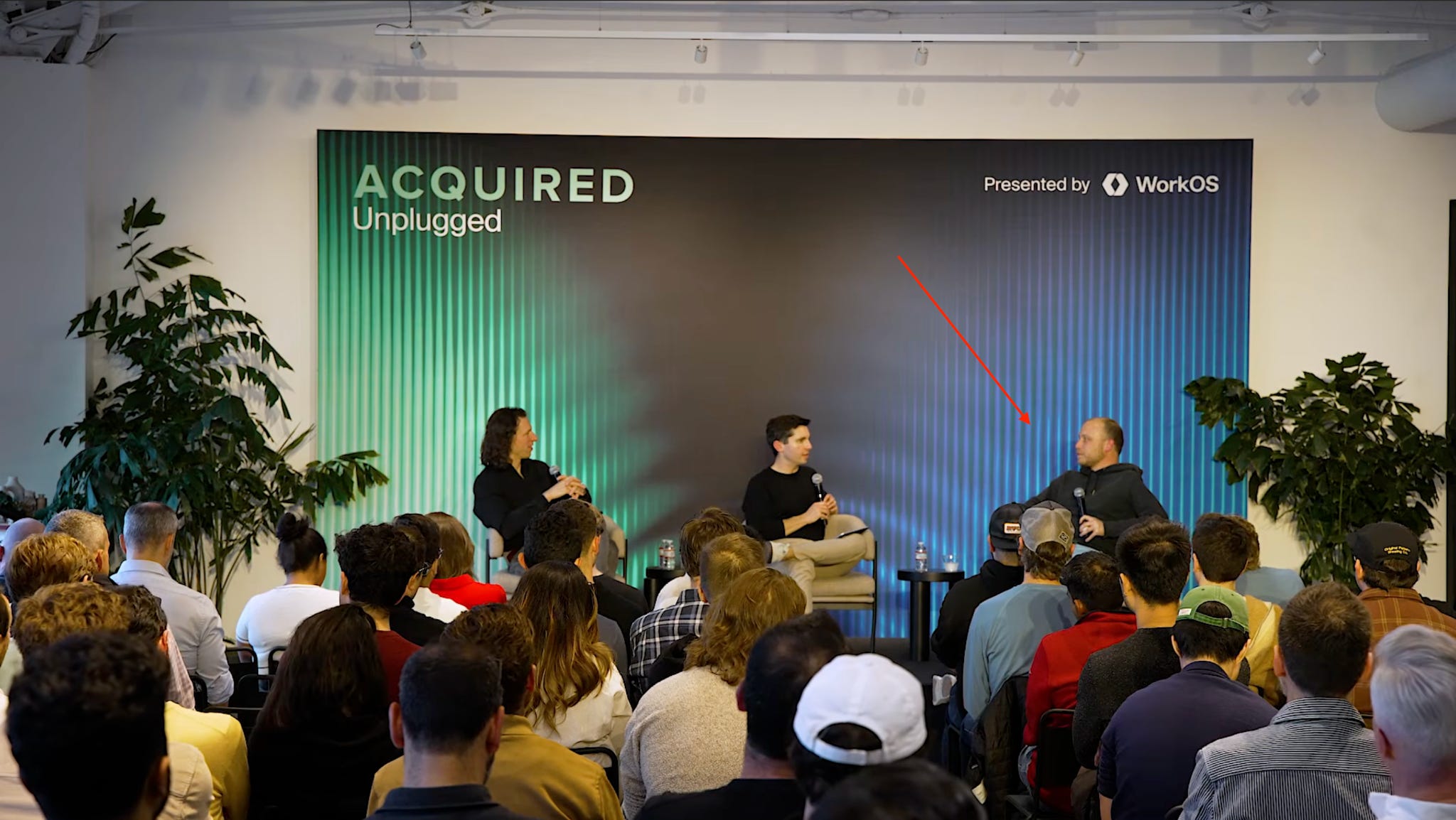
Two weeks ago I published a post about loop engineering, the shift from prompting Claude to designing loops that prompt Claude for you. Boris Cherny (who leads Claude Code at Anthropic) said it at a WorkOS keynote.
Peter Steinberger posted about it on X and got 8.3 million views.

After reading those posts, I decided to build 5 loops for my newsletter workflow and showed how each one works in Claude Code.
But not many people like to use the terminal and if you want to keep working with one of the most powerful models in the world, Cowork is the best alternative to a terminal with almost the same power.
This post is the path in.
By the end you’ll have:
The Two Dials mental model for understanding loops on any surface
The Cowork Loop Ladder: where you are now and what crossing to Level 3 looks like in Cowork
3 loop skills you can paste into Cowork today, with full instructions
The exact setup steps, including the one thing Claude Code users never have to think about
3 honest tradeoffs of running loops in Cowork
25 loop ideas across writing, research, code, operations, and customer support
This post is the perfect guide if you want a path to loops that doesn’t require a terminal. If you want the foundational explanation of what loops are and why they work now, the Loop Engineering post covers that:

But first, the belief that stops most Cowork users before they start.
The Assumption Stopping Cowork Users from Building Loops
If you opened my previous post, you probably saw a lot of screenshots of the terminal. You see slash commands and other things. You think:
“This is a Claude Code thing. If I don’t have Claude Code, I can’t do this”
That assumption is wrong, and it’s wrong for a specific reason.
The loop mechanic has nothing to do with the terminal. That’s just prompt logic:
Generate
Evaluate against explicit criteria
Fix violations
Re-evaluate
Stop when criteria met
So if you think about this through that lens, it’s a lot about the instructions you write and Claude executes them. Any surface where Claude can receive instructions and take actions can run a loop.
What IS surface-specific is the output interface:
Who sees the result
When they see it
Whether Claude should decide something or hand the decision back to you
That’s what has to change when you move from Claude Code to Cowork. The evaluation process stays almost the same, but the decision layer changes.
Two variables govern every loop you’ll build.
If you get them wrong, the loop will not serve the purpose it is supposed to. So let’s get them right (section below).
The Two Dials Framework: Loop Logic vs. Trigger Timing
Before building anything, you need to understand the two dials.
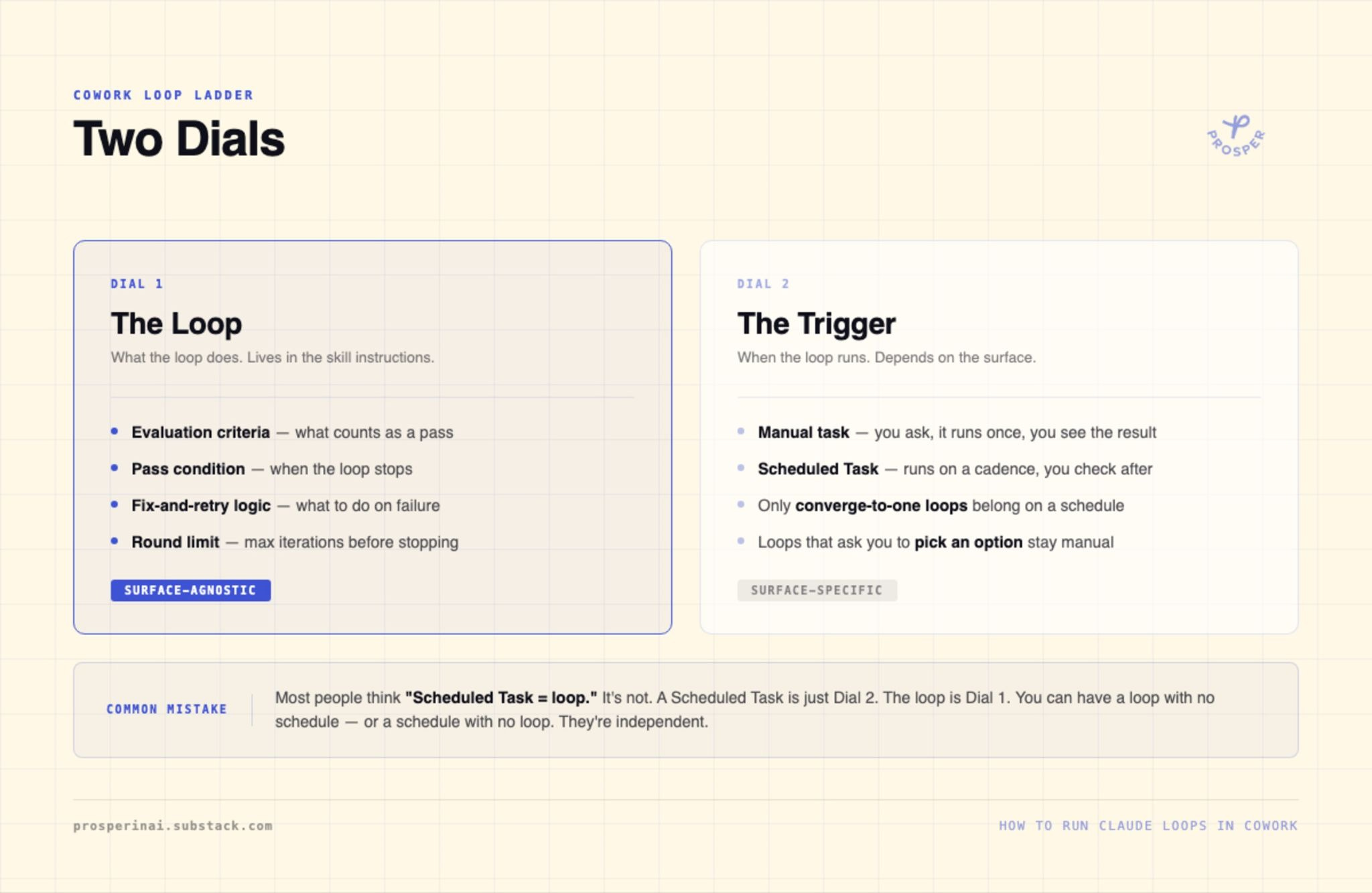
Dial 1: the loop. This is:
The evaluation criteria
The pass condition
The fix-and-retry logic
It’s what you write in the skill instructions. A loop that checks a draft for banned vocabulary, retries if it finds Tier 1 violations, and stops when the draft is clean. Same on every surface.
Dial 2: the trigger. This is when the loop runs. Manual task (you ask, it runs once, you see the result) or Scheduled Task (runs automatically on a cadence). This is surface-specific because it determines whether you’re there when the loop finishes.
You might think:
“Scheduled Task is just a different form of a loop.”
Well, not really. A Scheduled Task is just Dial 2. The loop is Dial 1. Does it end with a verdict or a question? Verdicts can run on a schedule. Questions can’t because nobody’s there to answer.
With those two variables in hand, here’s where most Cowork users currently sit and what crossing to Level 3 actually looks like.
The Cowork Loop Ladder
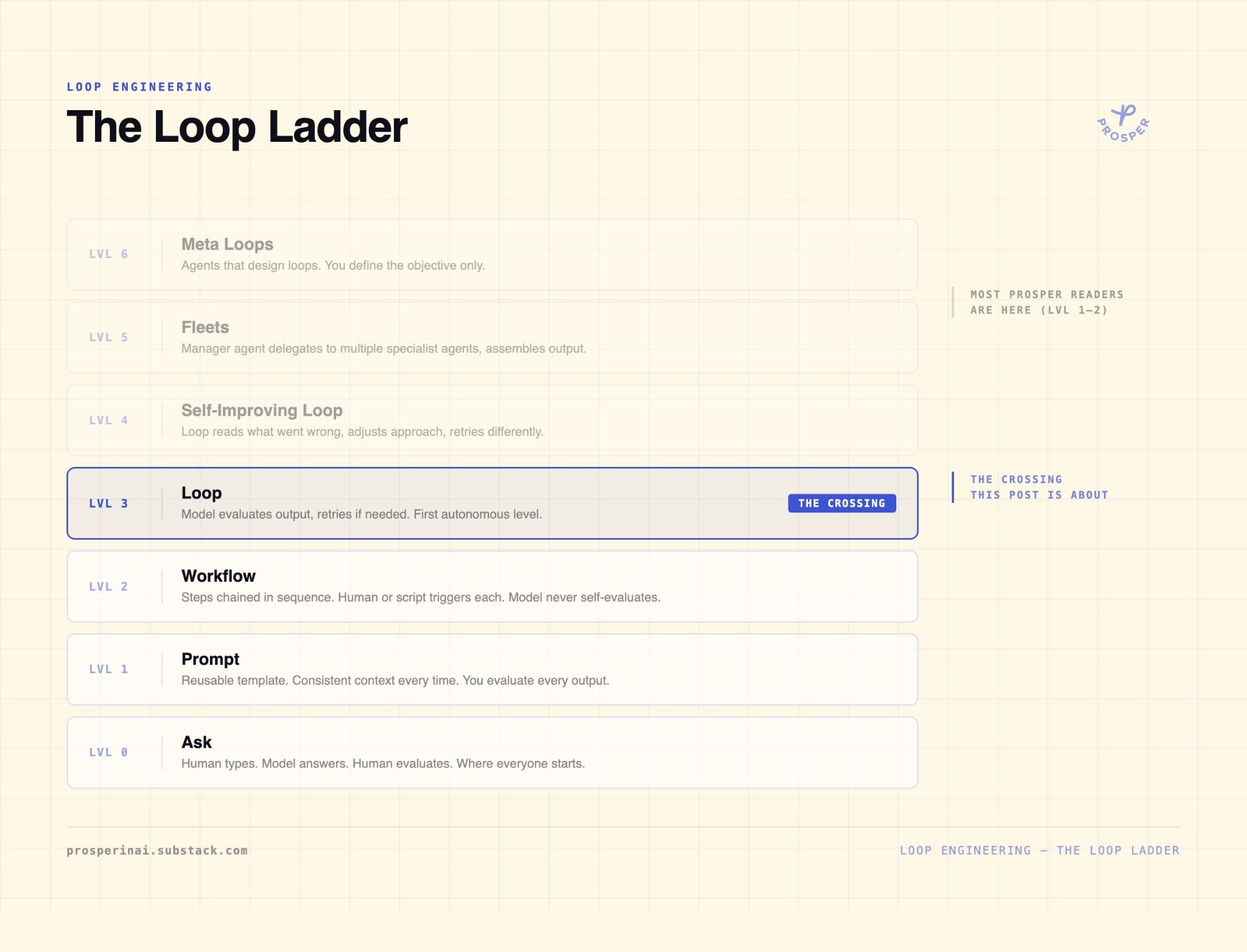
The Loop Ladder has 7 levels. The full explanation is in the Loop Engineering post. The short version:
Level 0 is asking Claude a question.
Level 1 is a reusable prompt.
Level 2 is a workflow: Research → Draft → Edit and each step triggered in sequence.
You’re still making every decision.
Level 3 is the first autonomous level. The system runs a step, evaluates the output against criteria you defined upfront, and decides whether to retry without you in the middle.
Most Cowork users are at Level 1 or 2. You have Project Instructions, maybe some saved prompts. Claude gets consistent context, but you evaluate every output.
Level 3 is the crossing. And in Cowork, it’s more accessible than most people think.
Before you build any skills, there’s one configuration step that doesn’t exist in Claude Code and it’s the one thing that breaks loops silently if you skip it.
Setup: The One Step Claude Code Users Never Take
In Claude Code, file access is implicit. Reference “writing_rules.md” and Claude reads it. In Auto Mode or Accept Edits mode, it reads files on its own as part of the task.
In Cowork, folder access is explicit. You grant it per Project. If you don’t grant access to the files your loop skills reference, they fail silently or Claude makes up what it thinks the rules are, which is worse.
Before creating any loop skills, go to your Cowork Project settings and grant folder access to the relevant directories here:
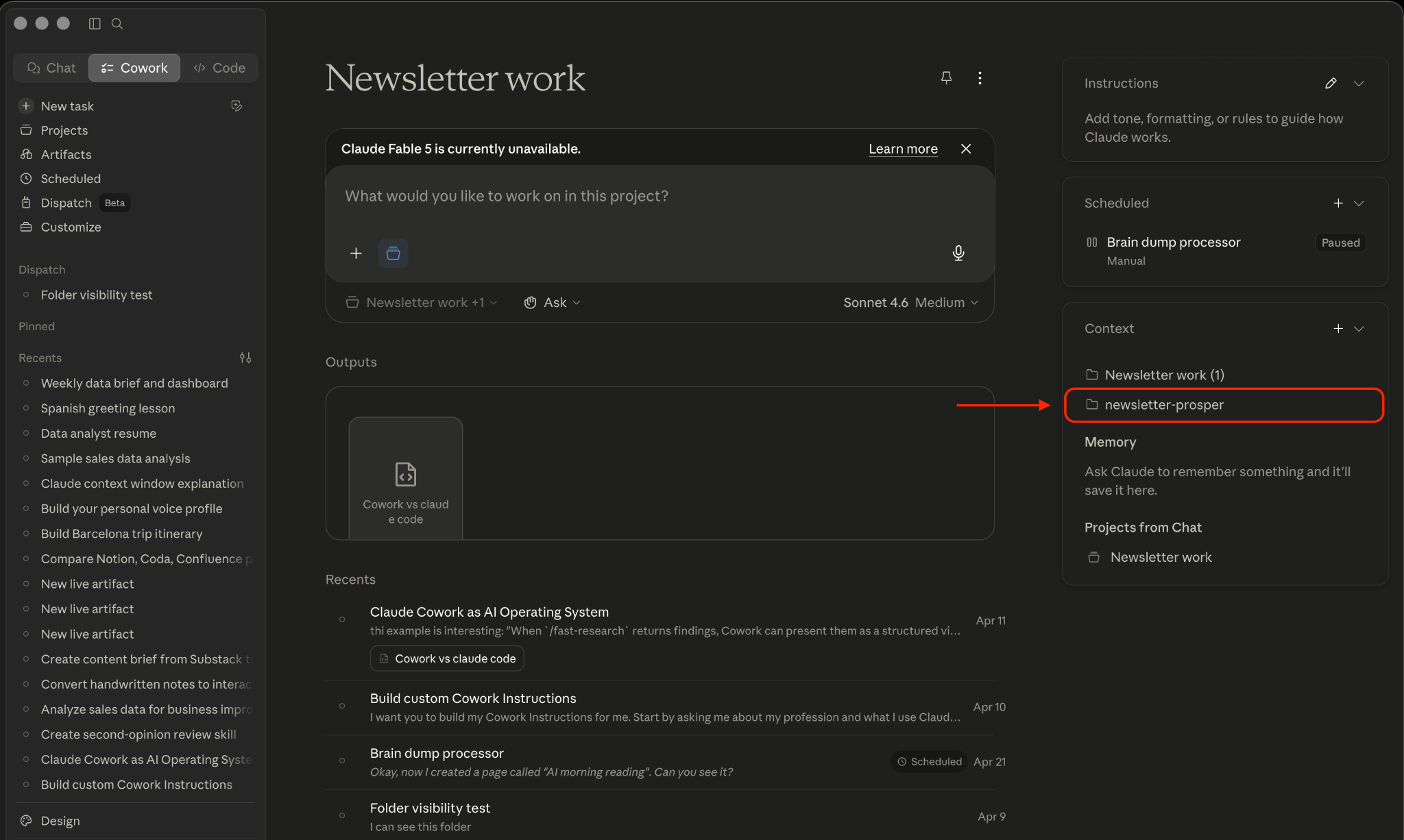
For the 3 loops in this post, you need access to the folder that contains your rules files and your archive. If you’re building these for a different workflow, grant access to whatever folders hold your evaluation criteria and your working files.
With folder access granted, here are the three loop skills you can paste into Cowork today.
