

How To Actually Set Up Claude Cowork Before You Do Anything
The four configurations that matter on day one and four more to add once you know how you actually work.

I’ve been using Claude Cowork since it launched in early 2026. Most people who get strong results from it share one thing: they set it up before they sent anything.
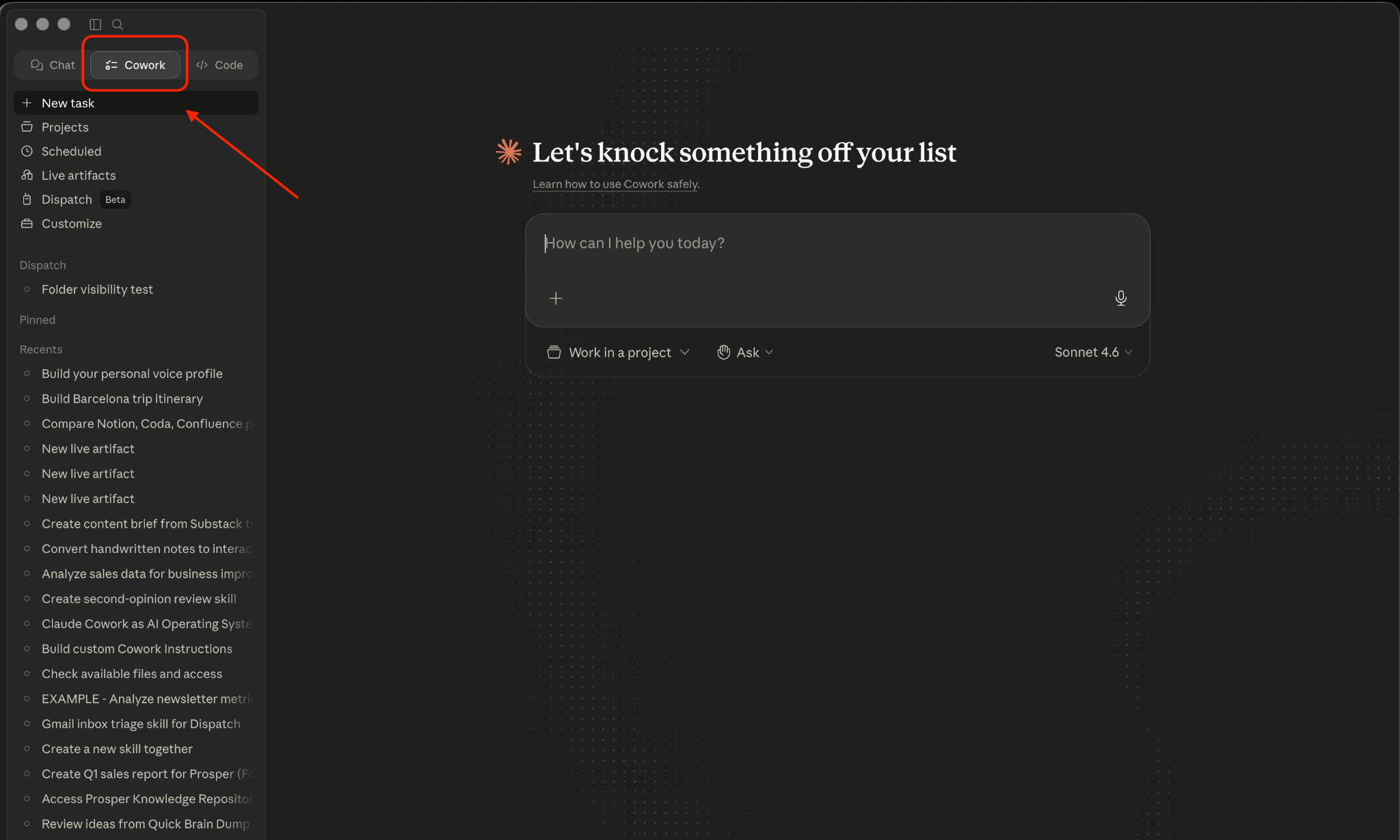
If Claude Code feels like too much right now, Cowork is where to start. It can do a lot of the Claude Code things, but in a better looking interface.
But just like with Claude Code, you need to configure Cowork to know you better and know how you work. That’s where you start getting the outputs that you actually desire.
This guide covers 8 configurations. 4 you should do today, before your first prompt. Four you’ll add over the next few weeks as you learn how you actually work in Cowork.
Two things to do with this:
Use it yourself
Send it to whoever says ‘I tried AI and it didn’t really work for me’.
What makes Claude Cowork different from Claude.ai
Cowork’s value isn’t all the models Anthropic gives us. Claude is the same Claude in Cowork, Claude.ai, or Claude Code. The difference is what you build around it. Local files, standing instructions, projects, persistent workflows.
Without setup, you’re running a powerful model with no context about who you are. The output will be fine. Generic and fine. With setup, Claude knows your files, your voice, your preferences, and the output is specific to you.
Less about prompting better. More about setting up better. I wrote about what Cowork looks like when it’s fully built out:
The Complete Guide to Claude Cowork as Your AI Operating System

I run Prosper entirely inside Claude Code. The full structure is there: context files, skills, the whole production workflow. It works well. I am used to it and I enjoy it. I wasn’t looking to replace it.
Alright, let’s move to the first setup for today.
Four Claude Cowork Setups To Do First
How to give Claude Cowork local file access
This is the one that changes what Cowork actually is.
Without it, you’re still in copy-paste land: you paste text in, get a response, paste the result somewhere else. With local file access, Claude reads your files directly, edits them, saves them back. No uploads. No middleman.
Click “Work in a project” at the bottom of the input box, then “Choose a different folder” and pick the folder you want Claude to access. I give Cowork access to my projects directory and my notes folder. Start broad, you can restrict access later once you know what you actually use.
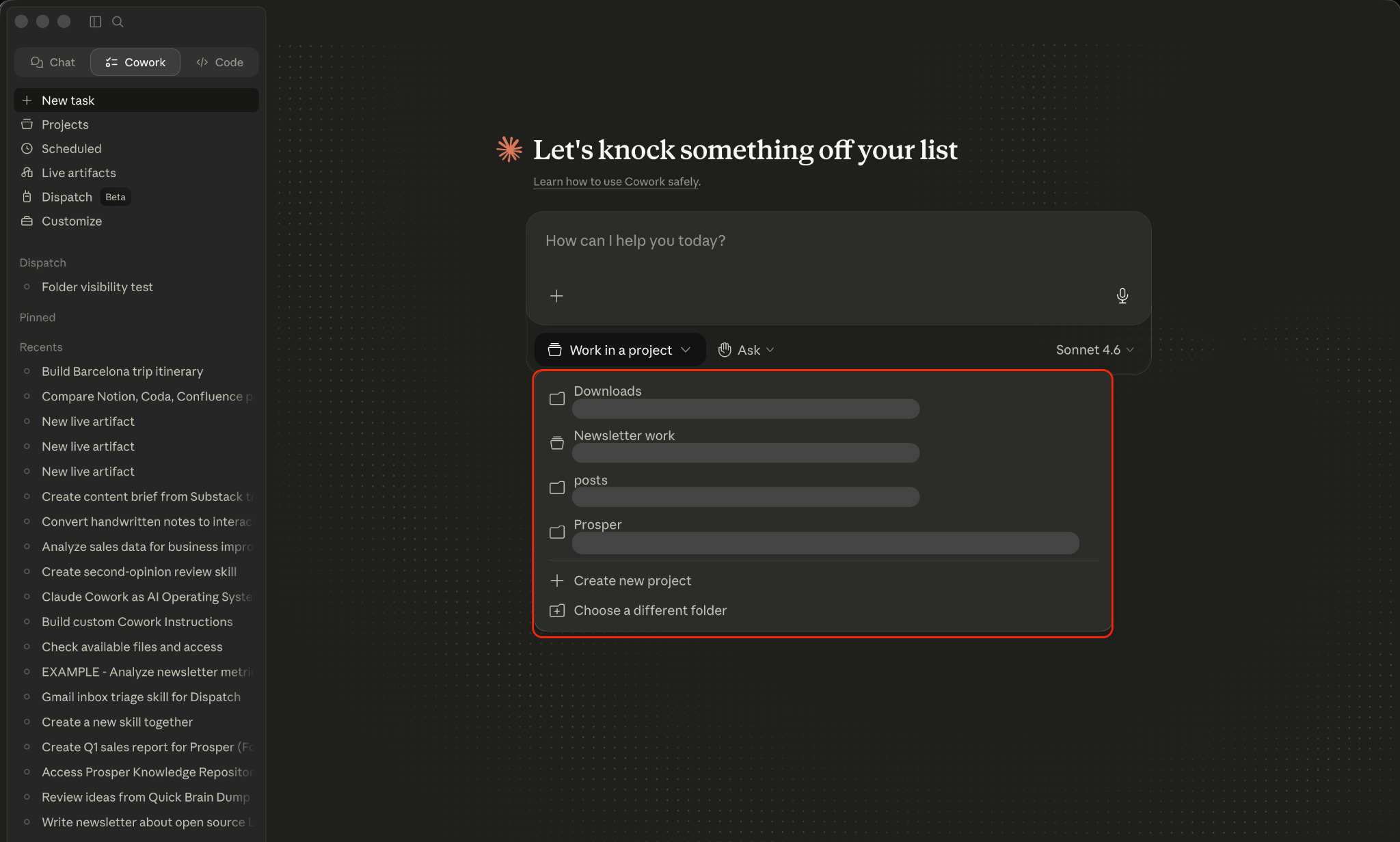
The “Work in a project” dropdown - this is where you connect Cowork to your local folders.
You can also do it through Projects: click “Create new project” → “Use an existing folder” to give Claude a folder you already work from.
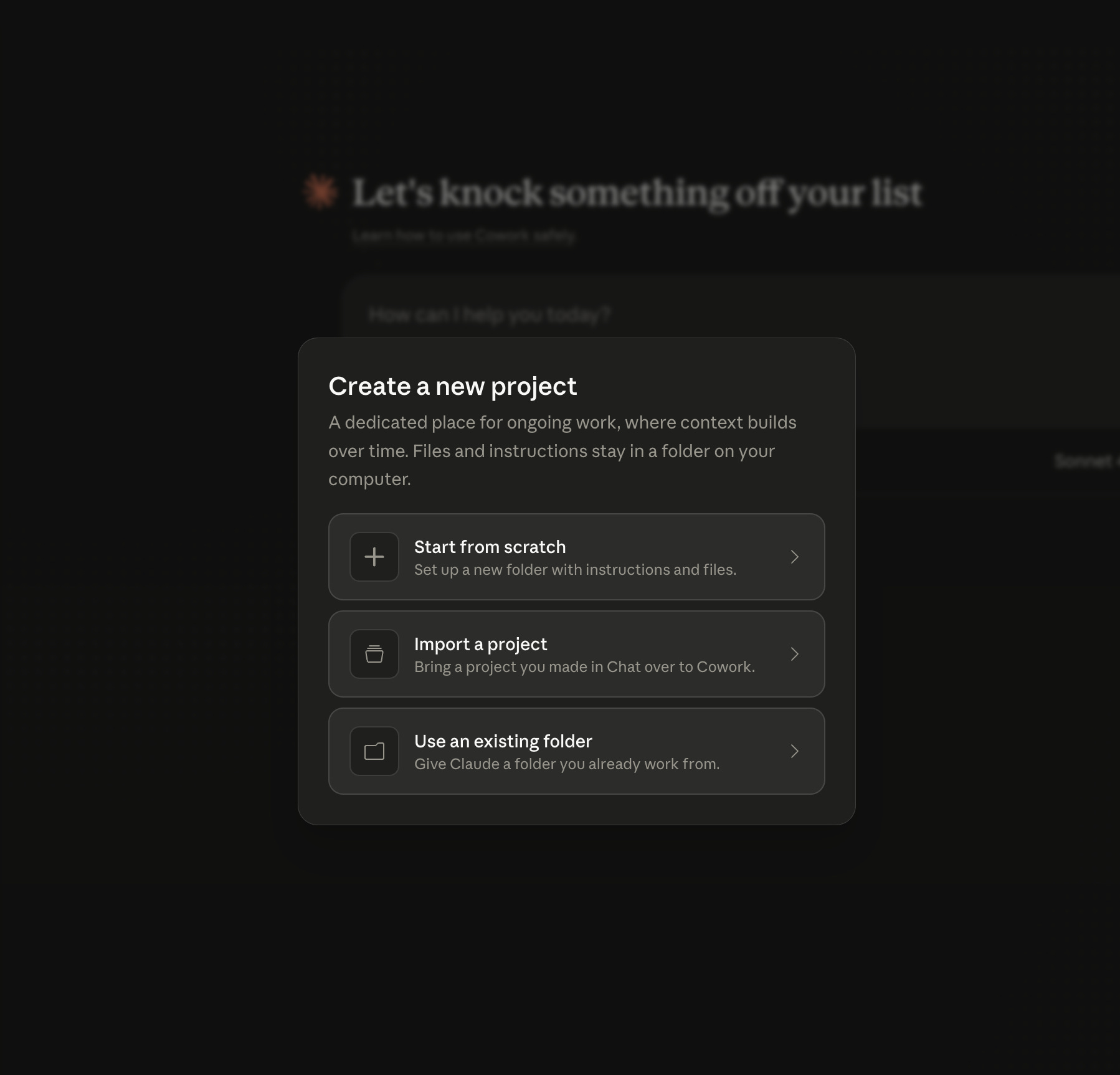
The second path - create a Project and point it at an existing folder.
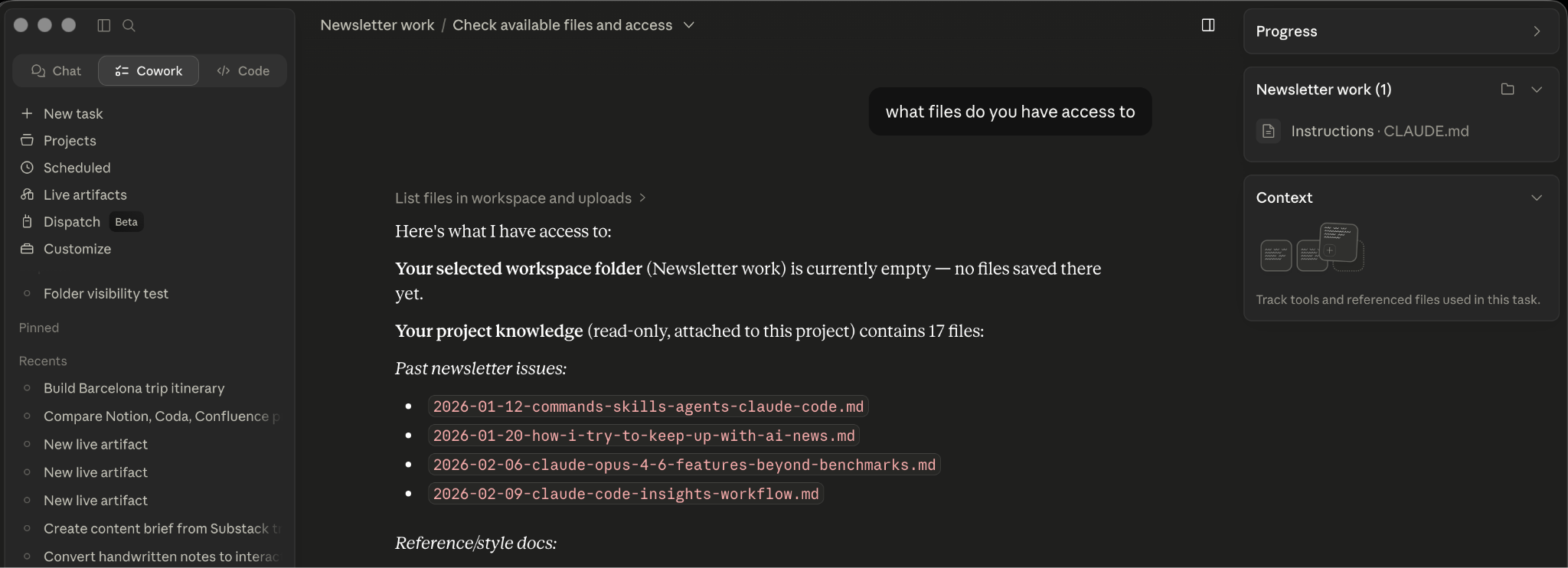
Once it’s set up, ask Claude to read a specific file. Watch it open the file, pull the relevant section, and work with it. That’s the version of Cowork that’s actually different from what you’ve tried before.
How to set up Cowork Global Instructions
Every session, Claude starts fresh. It doesn’t know your role, your preferences, how you like to work, unless you tell it. Global Instructions is where you tell it. One-time setup, reads at the start of every session.
Settings → Cowork → Global Instructions. Write a paragraph about who you are and how you work.
Mine covers: what I build, what I write, how I prefer to communicate, what to do when a task is unclear. For example:
“I’m a solo developer and newsletter writer.
I use Claude Code daily.
When drafting anything, match my voice: direct, short sentences, no filler.
Ask clarifying questions before starting anything long.”
That alone narrows the default output significantly. Write the first version now, refine it after your first session.
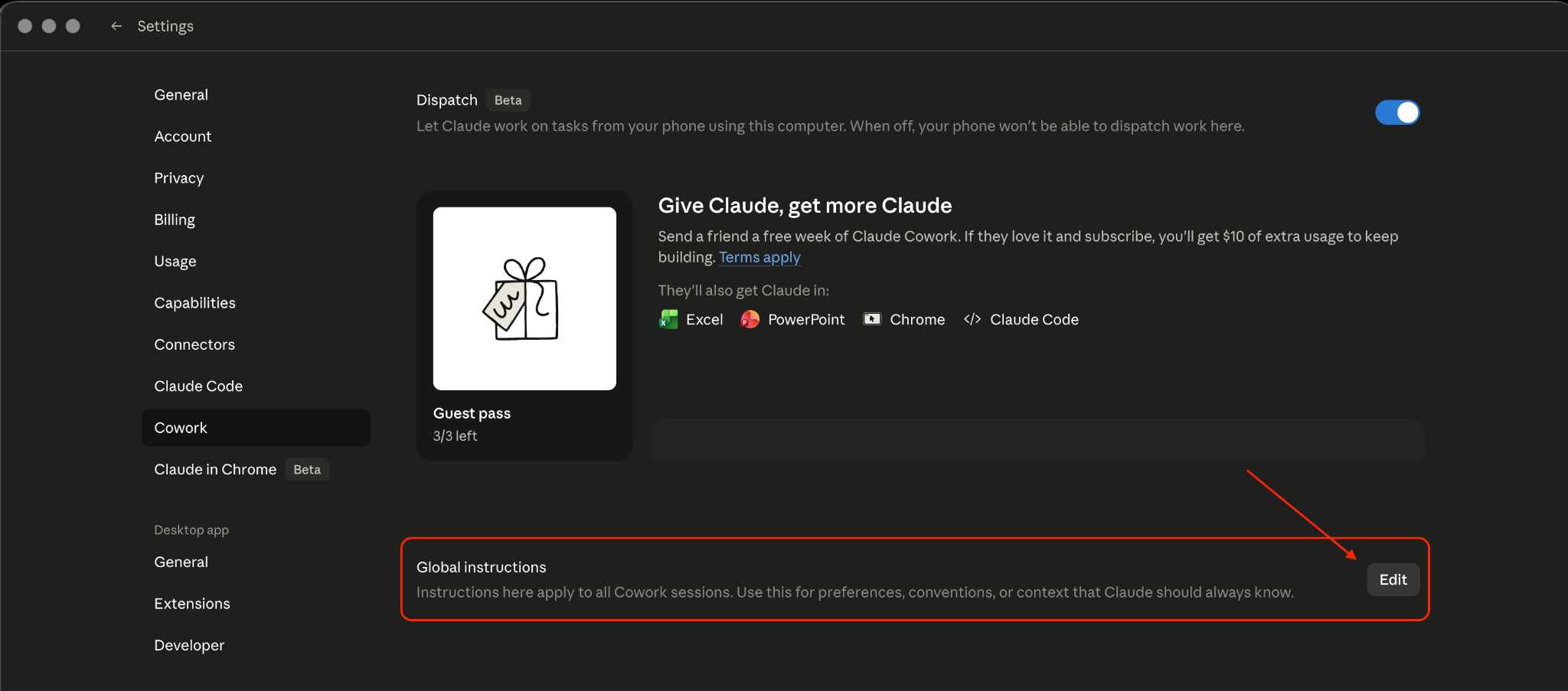
Global Instructions - the paragraph Claude reads before every single session.
How to build a voice_profile.md for Cowork
Global Instructions covers how you work. This file covers who you are.
Create a file called `voice_profile.md` in a folder you’ve shared with Cowork. Reference it in your Global Instructions so Claude loads it before writing anything.
The file should have three things: who you are and what you work on, how you communicate (what you sound like, what you avoid), and what you actually believe about your field. That last one matters more than people think. If Claude knows your real stances, it stops defaulting to the generic middle and starts producing work that reflects where you actually stand.
My file is around 800 words. Start with 200. It’s important to add the things that you never say or do. The negative space is as useful as the rest. It puts guardrails on Claude (or any other AI), and then it knows what to avoid.
The interview process would look like this:
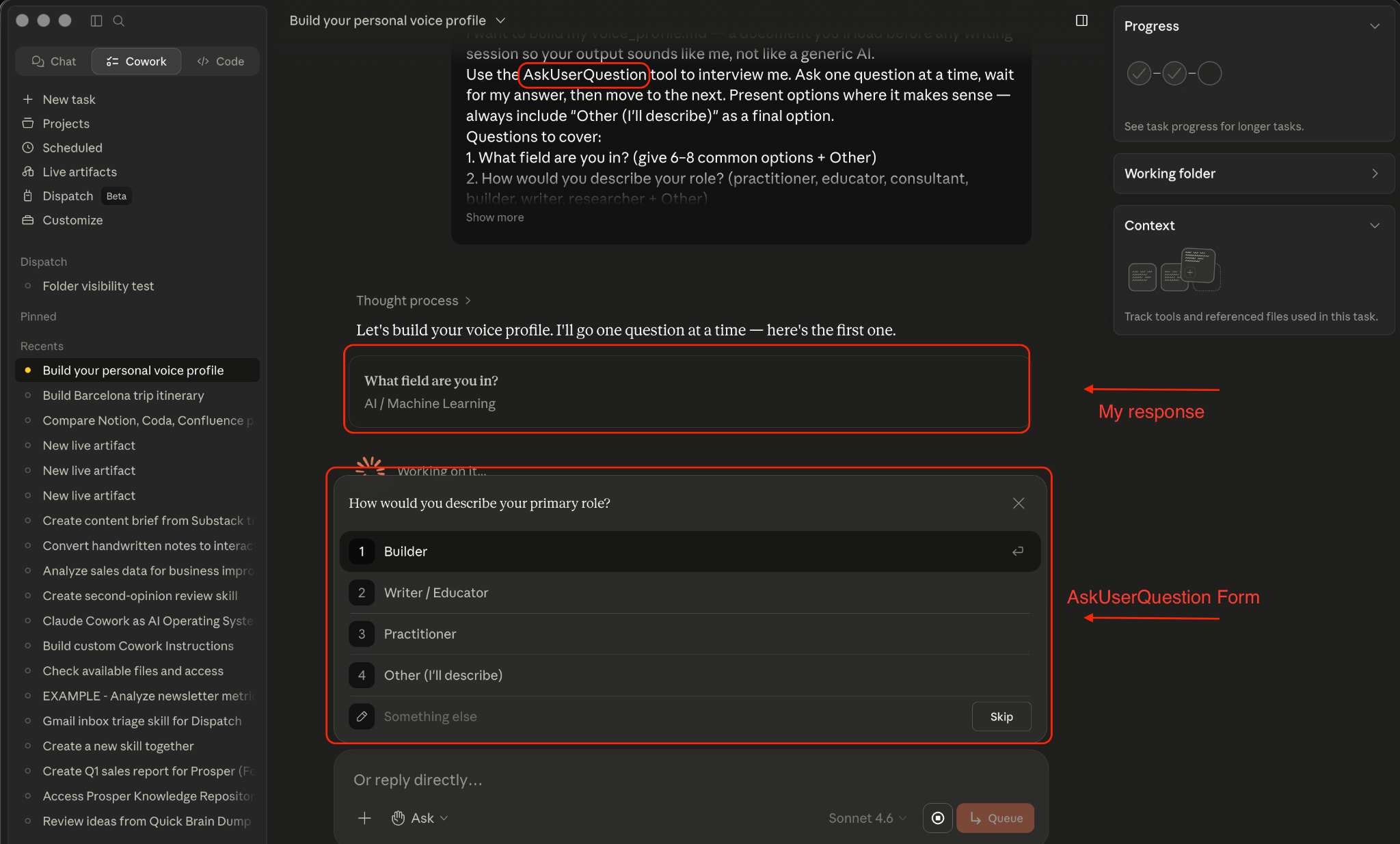
I have a prompt to help you build yours:
I want to build my voice_profile.md.
A document you’ll load before any writing session so your output sounds like me, not like a generic AI.

Use the AskUserQuestion tool to interview me. Ask one question at a time, wait for my answer, then move to the next. Present options where it makes sense, always include “Other (I’ll describe)” as a final option.

Questions to cover:

1. What field are you in? (give 6–8 common options + Other)
2. How would you describe your role? (practitioner, educator, consultant, builder, writer, researcher + Other)
3. What’s the core mission behind your work — why does it exist?
4. What do you believe that most people in your field would push back on? (ask for 2–3 takes, one at a time)
5. How do you produce your work? (options: research-first, experience-first, collaboration-based, intuition-based + Other)
6. Pick your communication style traits (multiSelect: direct, warm, analytical, contrarian, optimistic, systems-oriented, story-driven, concise + Other)
7. Who do you write for — your ideal reader? (options across experience levels + Other)
8. Two short lists: what you always do, and what you never do.

Once I’ve answered all eight, write a voice_profile.md with these sections: Core Identity, Beliefs & Contrarian Takes, Writing Process, Personality Traits, Always/Never, and an Anti-Overfitting note at the end.
The AskUserQuestion form in action - Cowork interviewing you to build your voice_profile.md.
Cowork Projects: the setup that compounds over time
Every other setup in this section is something you write once. Projects build themselves over time.
A Project in Cowork is a persistent workspace: its own files, its own instructions, its own memory. When you do recurring work like writing, research, code reviews, anything you come back to regularly, Project is perfect for it. Every session inside that Project adds to what Claude knows about how that work should go.
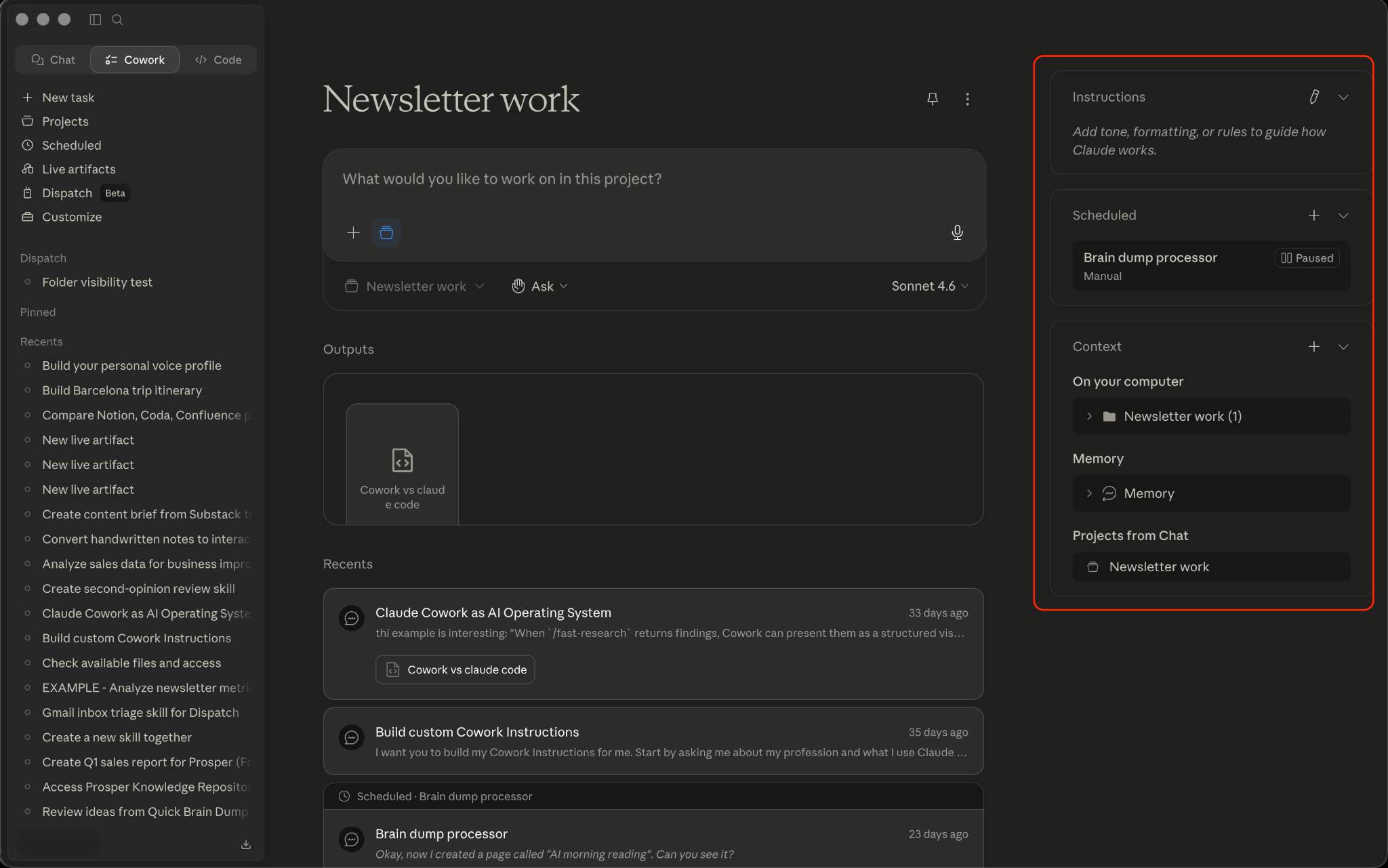
Here’s the part that makes it different from just having folders: the memory is stored in files on your machine, not in a cloud session with a hard limit. That means Claude can remember decisions, preferences, and patterns across weeks and months, not just within a single session.
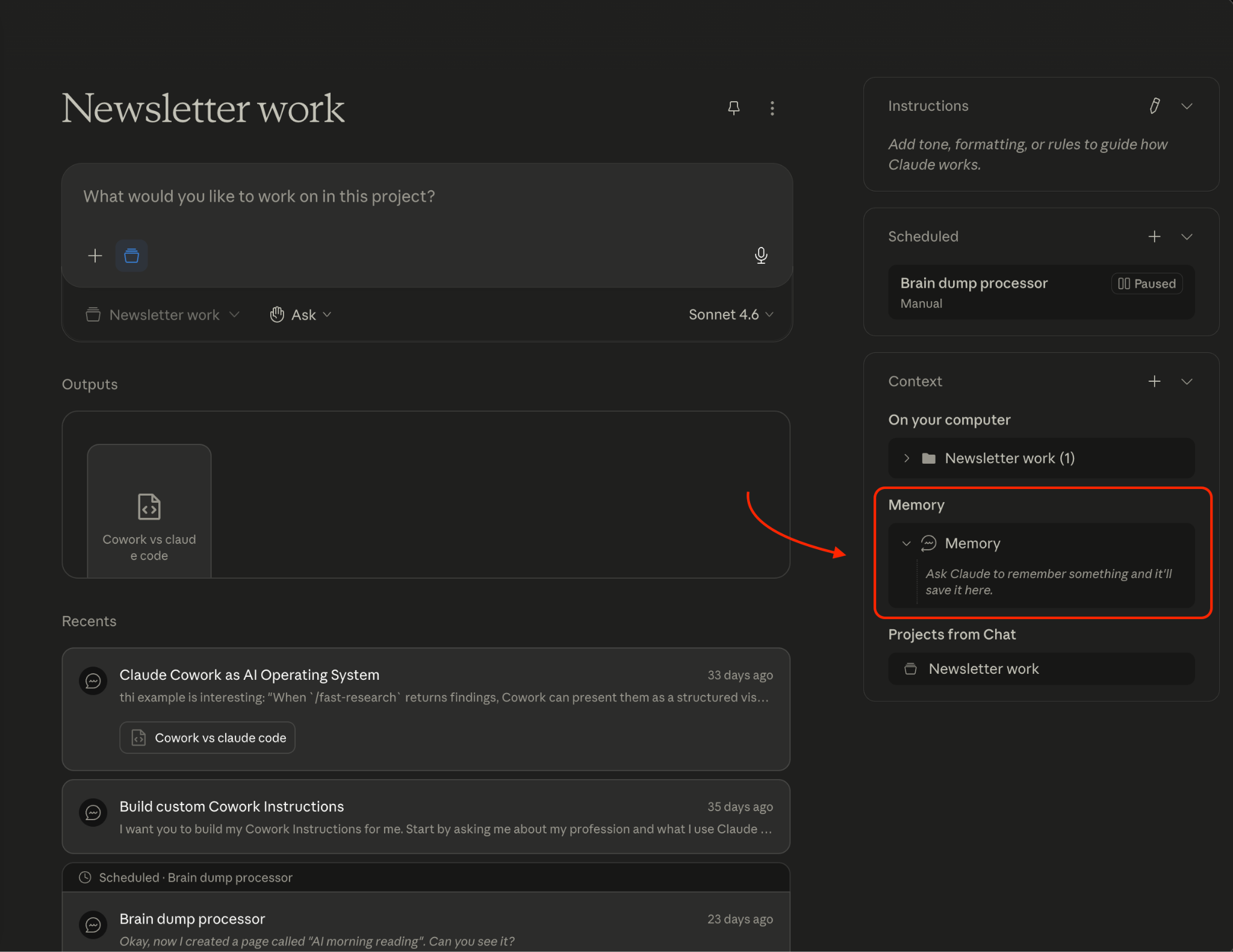
The feedback loop that builds up: you work on something, Claude produces output, you edit it or tell it what you’d do differently, it writes those preferences into the Project’s memory. The next session starts closer to what you want. The session after that, closer still.
Two months in, a well-used Project feels like working with someone who’s been watching how you do things.
The amazing part about Projects is that they get better the longer you use it.
Four Cowork features to add in your second week
These four are worth setting up a bit later.
The features to come back to in week two.
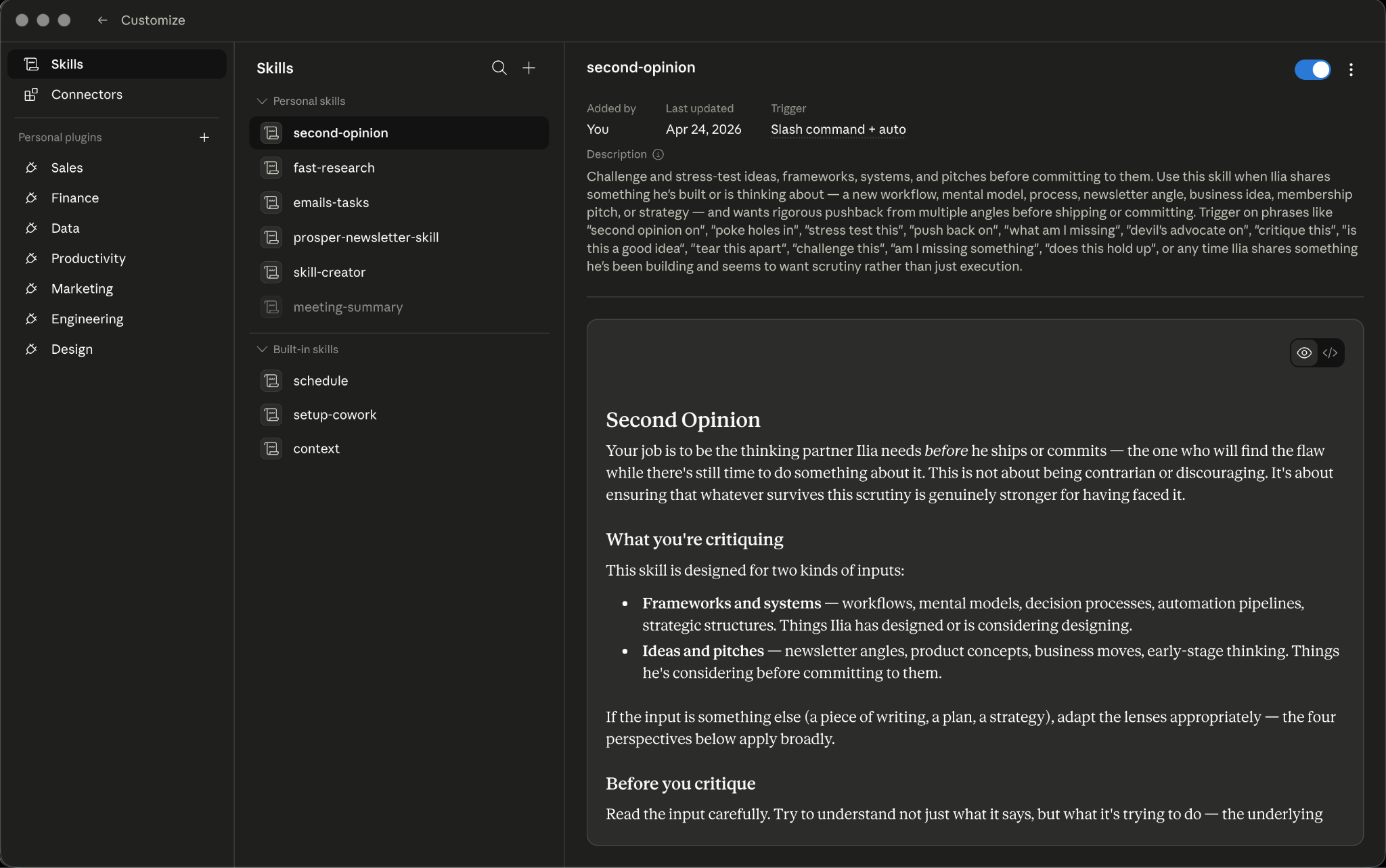
Skills. Reusable workflows you teach Claude once. If you explain the same process three sessions in a row, turn it into a skill. One definition, referenced in any future session. I have skills for drafting posts, running code reviews, and briefing new ideas, here’s a video how I would set up my first skill:
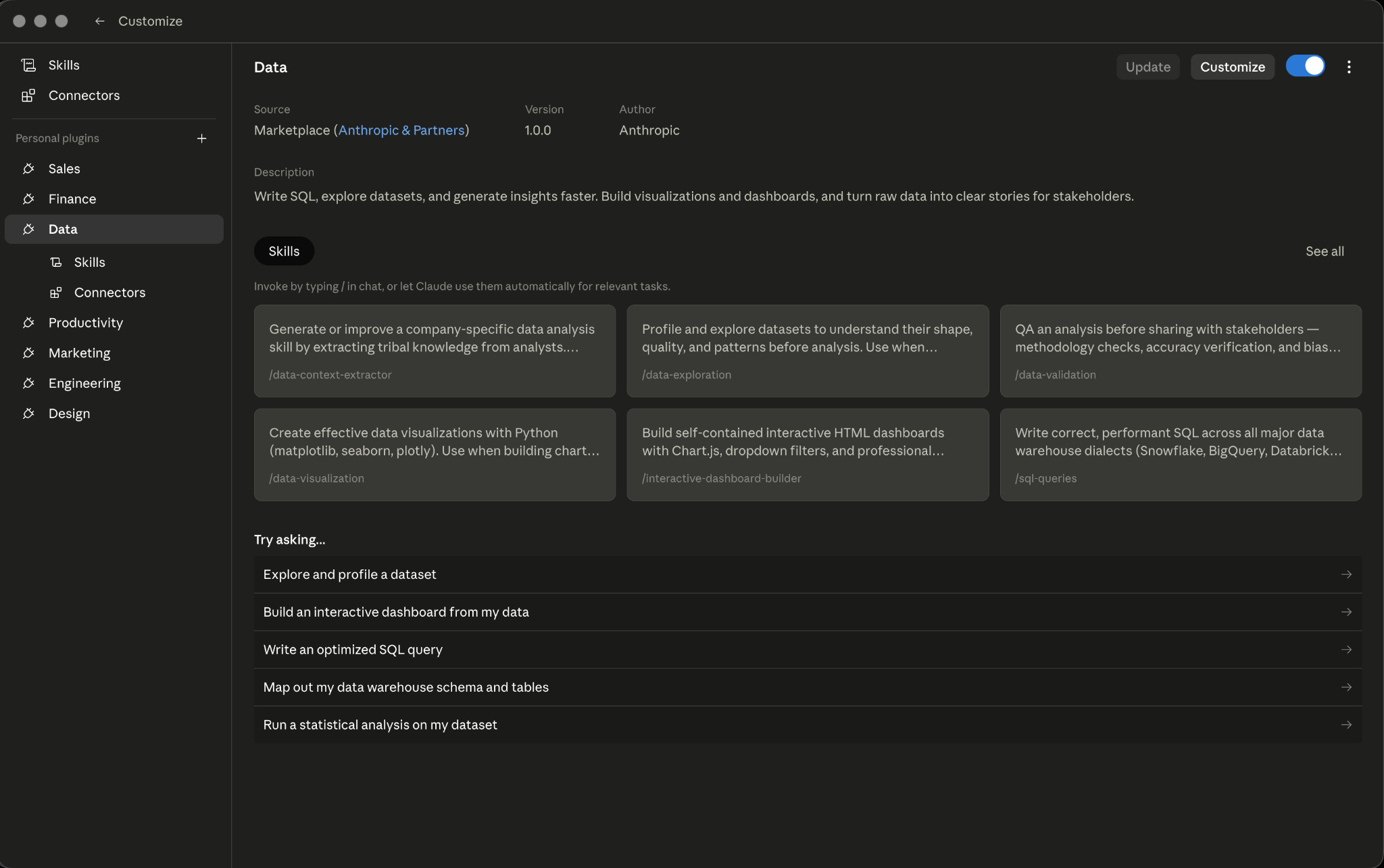
Plugins. Bundles of skills and slash commands that work out-of-the-box, no setup required. Each plugin is a package built around a role or domain. The Data plugin, for example, comes with six skills pre-loaded: `/data-exploration`, `/data-visualization`, `/sql-queries`, `/interactive-dashboard-builder`, and more. Toggle it on, and they’re immediately available. You can also build your own under Personal Plugins. Same idea, your own combinations.
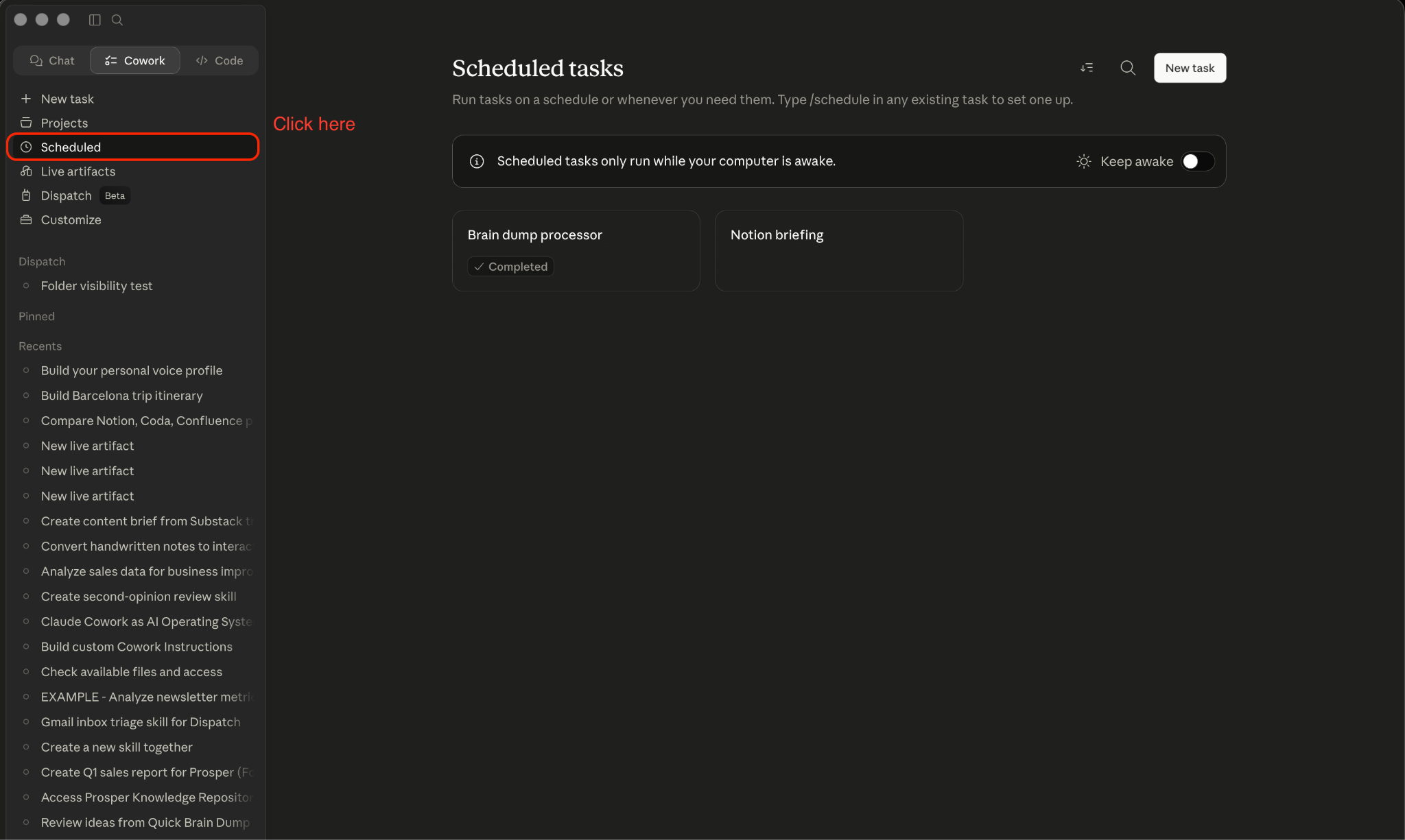
Scheduled tasks. Cowork can run tasks without you there. Daily research digests, weekly reviews, recurring summaries. One constraint though, your machine has to be awake. If it’s asleep, the task won’t run. Once you trust the output quality and have that sorted, this is where Cowork starts returning time you didn’t know you’d get back.
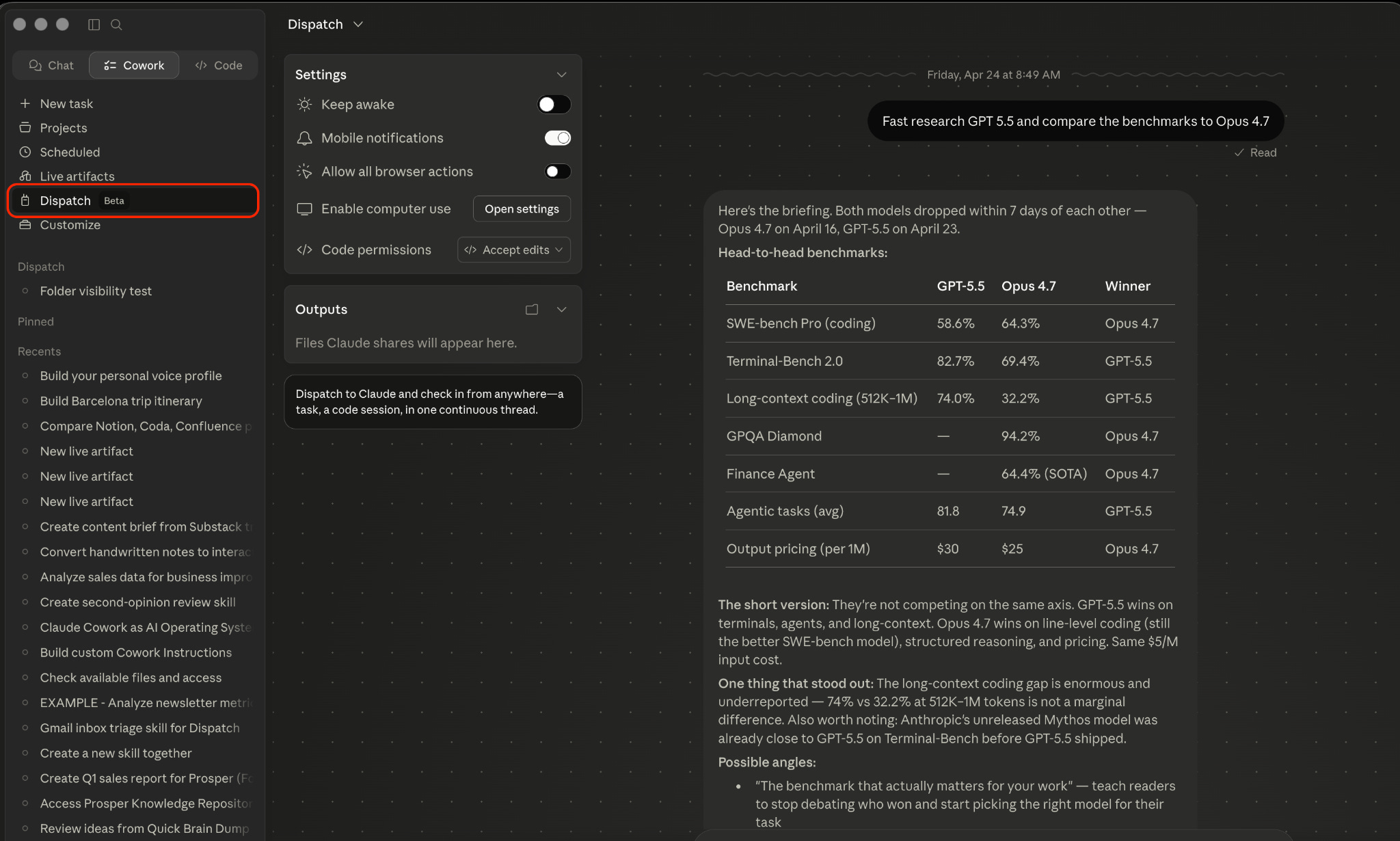
Dispatch. One of my personal favorite features of Cowork. Assign tasks from your phone, pick up the finished work when you’re at your desk. Same constraint as Scheduled tasks: your machine needs to be awake. Useful once your file access and instructions are solid enough that you trust unsupervised output.
Personally, I run a bunch of my skills through Dispatch and then come back to my machine with the output ready to be reviewed. If you want to go a level further, a full personal AI assistant you can message from your phone at any time, here’s how I built that with Telegram:
My AI Assistant Now Lives in Telegram. Easier Setup Than OpenClaw.

You've built a Claude Code setup that actually works. Skills, memory, CLAUDE.md, files organized the way you think. The more you put into it - custom instructions, a knowledge base, slash commands - the more it starts to feel like a real collaborator. And then you walk away from your desk and all of it disappears. Your phone has Claude. Not
How to set up Claude Cowork in 40 minutes
If you have 40 minutes today:
1. Local file access - add two or three folders. (5 minutes)
2. Global Instructions - write a paragraph. (10 minutes)
3. voice_profile.md - run the interview prompt in Cowork, answer eight questions, let it write the file. (15 minutes)
4. Create your first Project - pick one recurring workflow and set it up there instead of in a general session. (10 minutes)
Come back for Skills and Plugins a little bit later. Add Scheduled tasks and Dispatch once you’ve run a few sessions and trust what Cowork produces on its own.
One honest thing: Projects take time to get good. Once you see a couple of outputs, you will most likely adjust the instructions, maybe ask Claude to add something to the Memory, and do other things. Four weeks in, you start to feel the difference. Don’t judge it early.
That’s it. Claude now knows who you are, how you work, and where your files are.
Plus, Cowork has some genuinely useful tricks up its sleeve, things like Dispatch, Plugins, and Skills. But those work best once Claude already knows you. Which it will after the first 4 features are set up.
Thank you so much for reading,
Ilia
Send this to the person on your team who keeps saying “I tried AI but it didn’t work for me.” The setup can change their opinion
FAQ
Q: What’s the difference between Claude Cowork and Claude.ai?
Claude.ai is the browser-based chat interface. Cowork is a desktop agent environment, it reads and writes files on your machine, runs scheduled tasks, and maintains memory across sessions inside Projects. The model is the same. What’s different is what you can put around it.
Q: Do I need a paid Claude plan to use Cowork?
Yes. Cowork is a Pro feature. The setup in this post assumes you already have access.
Q: Does voice_profile.md need a specific format?
No. It’s a plain text file, Claude reads it like any other document. The structure that works: who you are, how you write (including what you avoid), and your opinions on the topics you cover. Start with 200 words and add to it over time.
Q: How is Cowork different from Claude Projects on Claude.ai?
Claude Projects on the web stores context in the cloud with session limits. Cowork Projects store memory in files on your machine, no hard limit, and memory accumulates across months of use, not just within a session window.