

Crash Course On Building Apps With Codex
Why Codex isn't just ChatGPT for coders: plan mode, parallel agents, and the workflow that ships real apps.


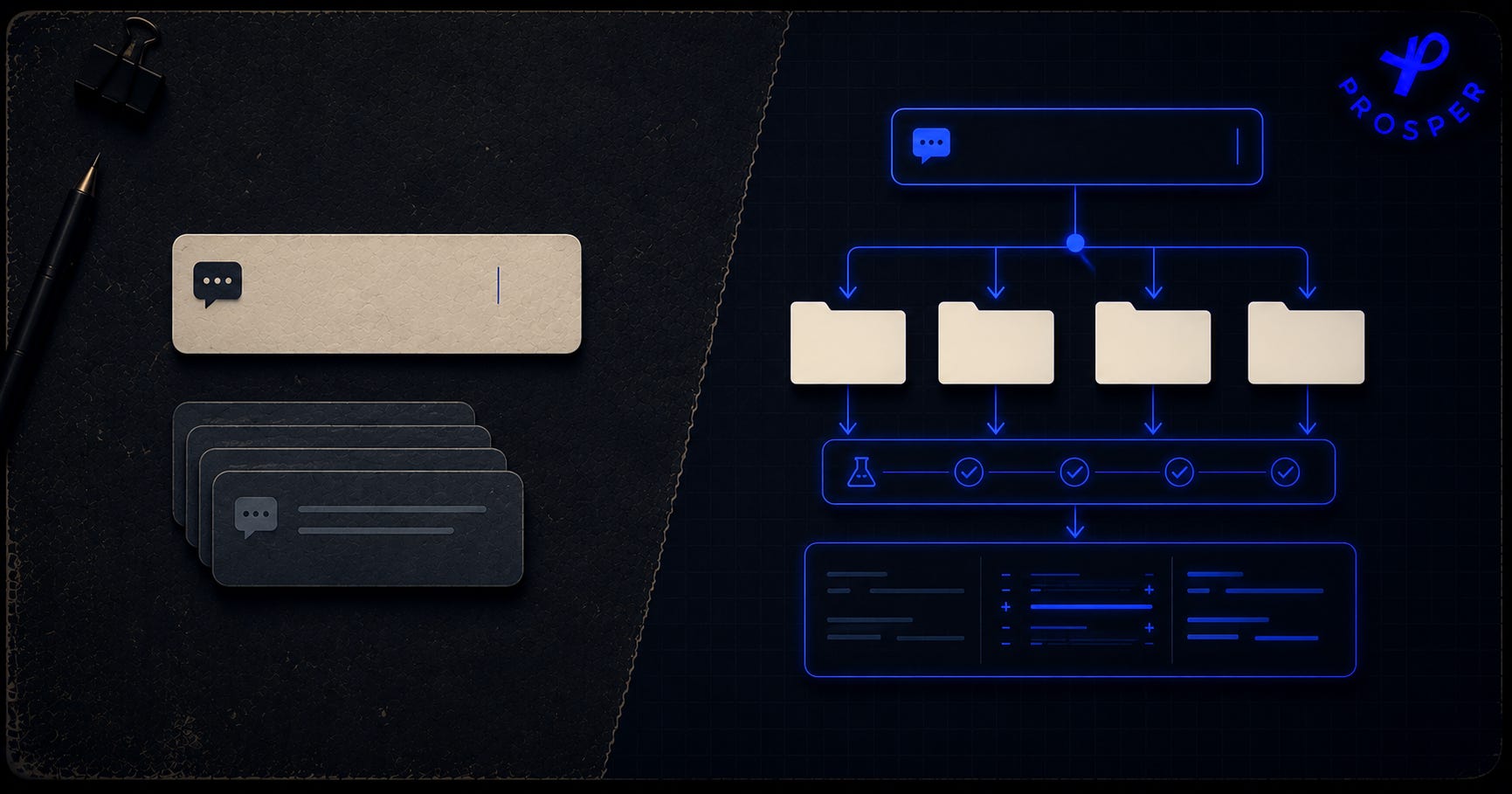
There's a shift happening in AI tooling that most people haven't fully understood yet. We went from asking AI how to do something to watching AI do it.
As you guys might know, I have been investing a lot of time in Claude products mostly. One of my very first use cases for AI was coding, and I went with the best model in the world to help me do it. Also, the tools around Claude captivated my attention ever since they were created.
But Jeff's post today might be changing my mind.
OpenAI have been making a lot of amazing updates to ChatGPT and Codex, and I am considering using it more and more. But Jeff on the other side, is a much more experienced Codex user than me. So I asked the expert to share his experience with the tool and how he uses it!
Jeff Morhous walks through Codex the way I wish more tutorials did, by building something real with it, start to finish. A working app, with plan mode, reasoning levels, and the parallel-agent workflow that makes Codex genuinely useful for professional work.
There are a couple of interesting tricks that Jeff shares in his post that I found particularly useful.
Jeff is a senior software engineer and developer educator. He writes The AI-Augmented Engineer:

Some of his recent posts:
Now let's get into it.
Codex is one of the clearest examples of where AI tooling is headed.
For a while, most developers used AI as a better Stack Overflow. You had a question, you asked ChatGPT, and it explained the answer. That alone was a huge improvement over trying to search for the exact blog post, GitHub issue, or Stack Overflow thread that matched your problem.
But answering questions is so 2022. ChatGPT and Claude are incredible tools to interact with the models, but they’re also not agentic.
The bigger shift is from tools that explain work to tools that do work. Instead of asking ChatGPT how to fix a bug, you can ask Codex to inspect the codebase, make the change, run the tests, and hand you back a diff.
That is the key difference between a chatbot and an agent.
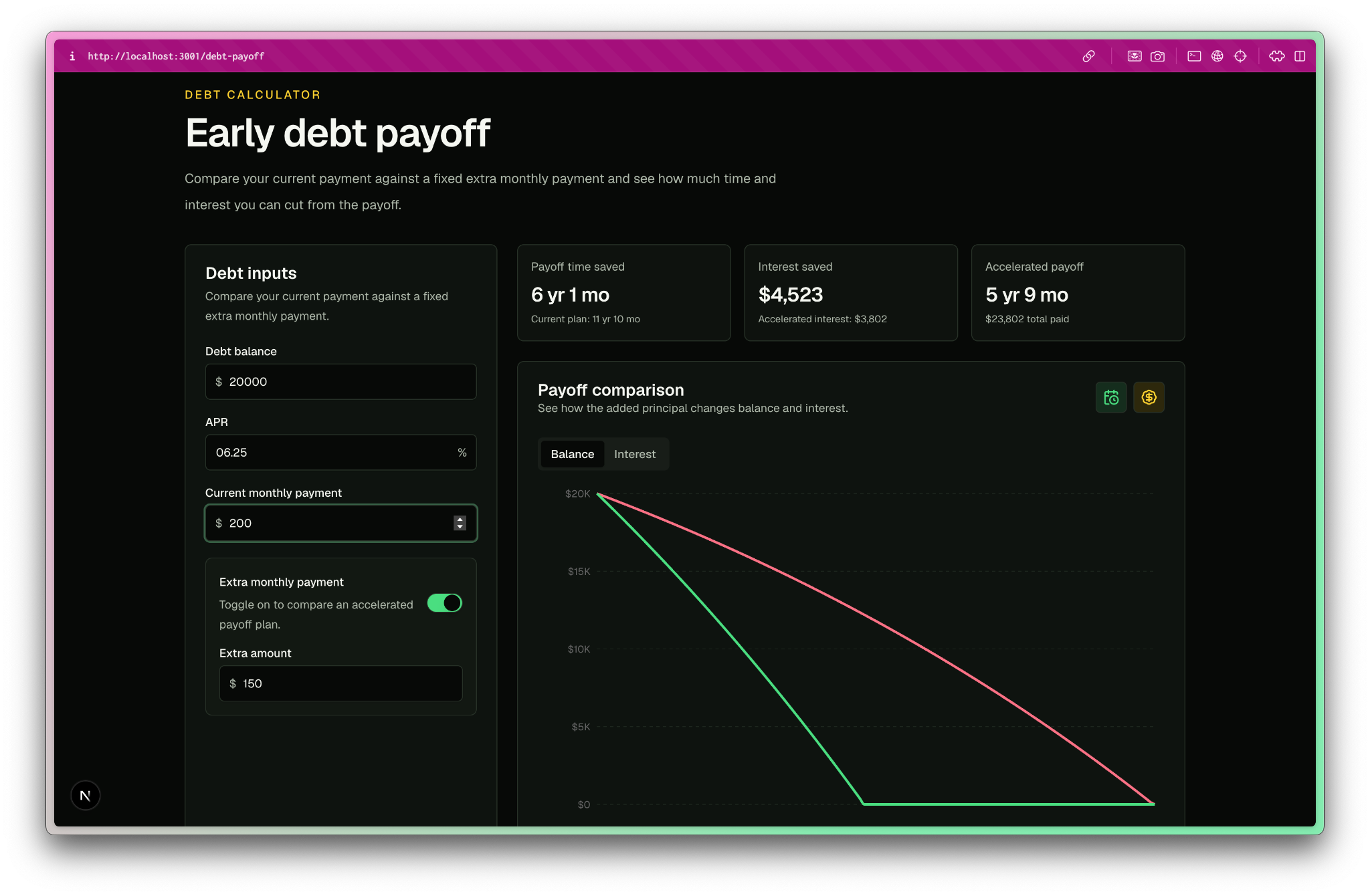
In this article, I’ll walk through what Codex is, whether it’s only useful for software developers, and then show how to install it and use it to build something real. Here’s a sneak peek of the financial calculator we’ll build with Codex.
What is Codex?
Codex is OpenAI’s flagship tool for developers. While it’s mostly used in the Codex Mac app, Codex also has a CLI and web version.
Put simply, Codex is an agentic coding tool for software engineers. You give it a task, point it at your codebase, and it works toward a result. That might mean fixing a bug, adding a feature, refactoring a messy part of the codebase, writing tests, or explaining how an unfamiliar project works.
The important distinction is that Codex is not just ChatGPT with a developer persona. ChatGPT is great when you want an explanation, a plan, or help thinking through a problem. Codex is better when you want the tool to actually operate on your code.
That means Codex is closer to tools like Claude Code than it is to a normal chat interface. It sits between you and the model as a harness for real work. If you want your AI to be able to read files, edit code, run commands, and evaluate results, you need an agentic harness like Codex or Claude Code.
Is Codex just for developers?
Codex started as a developer tool, and software engineering is still its most obvious use case.
That makes sense. Code is unusually well-suited for more generalized agents because there is often a clear task, a concrete output, and a way to check whether the work succeeded. If Codex changes some code, it can run the test suite. If it introduces a syntax error, the compiler or runtime will complain. If it misunderstood the task, you can inspect the diff.
But Codex is starting to become something broader than a coding assistant.
OpenAI has been moving Codex toward more general knowledge work. With integrations for tools like Gmail, Google Calendar, PowerPoint, and computer use, the product direction is pretty clear.
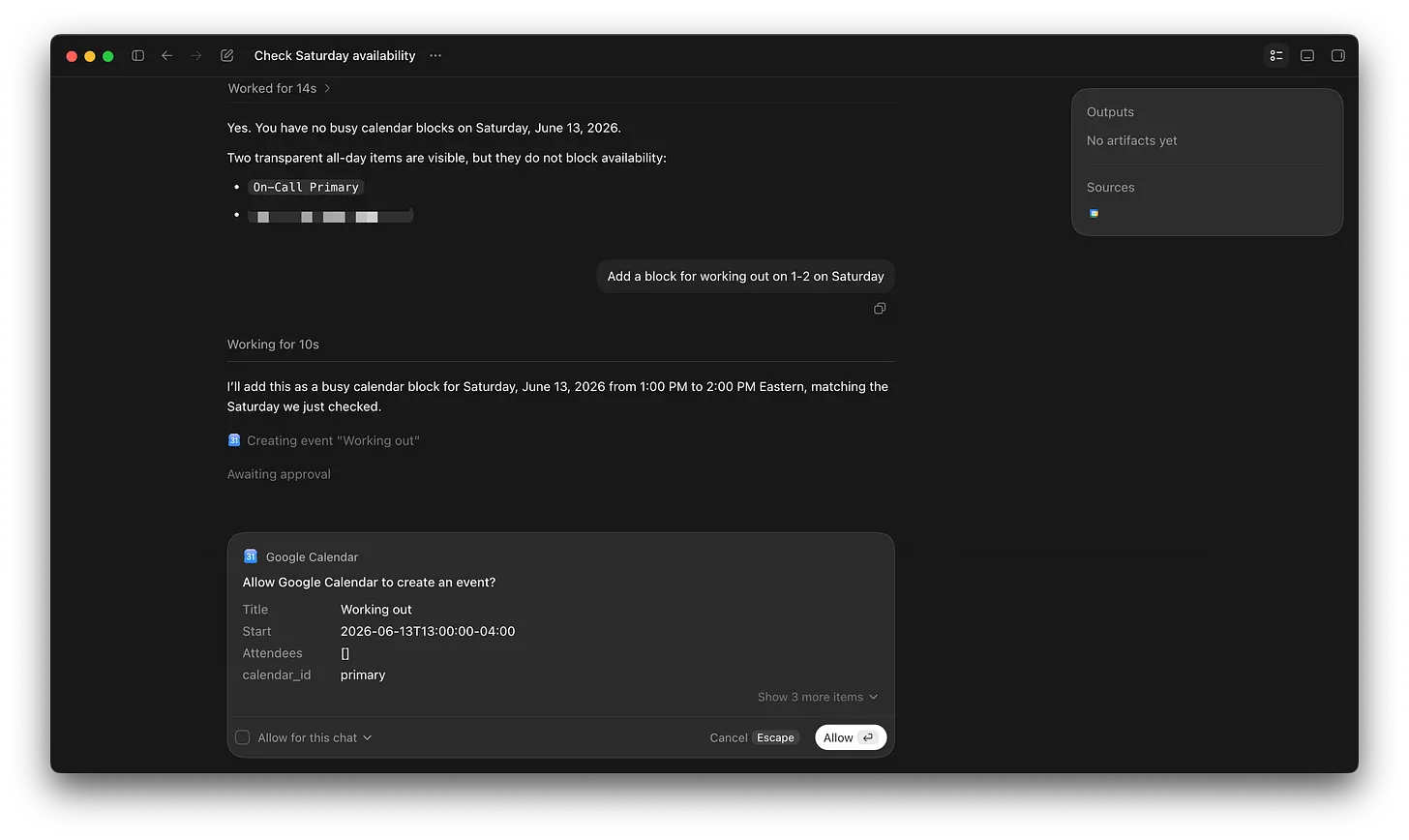
Codex is not just meant to write software. It is meant to become an agent that can work across the apps where people already spend their day.
For developers, this is both exciting and a little concerning. The focused developer workflow is what makes Codex useful. If it becomes a general-purpose work app, it may become more powerful, but also less specifically tuned for software engineering.
Still, this shift is worth paying attention to. Developer tools are usually where new computing interfaces show up first. The terminal, Git, cloud infrastructure, APIs, containers, CI/CD, and now agents all became normal in software before they became normal everywhere else.
So yes, Codex is still mostly for developers today, but that’s quickly changing.
Getting started with Codex
If you want to follow along in the next section, you’ll need to get Codex setup. You’ll want to visit the Codex website and download the app. You can use the CLI or web-based version, but you’ll get a much better experience in the app.
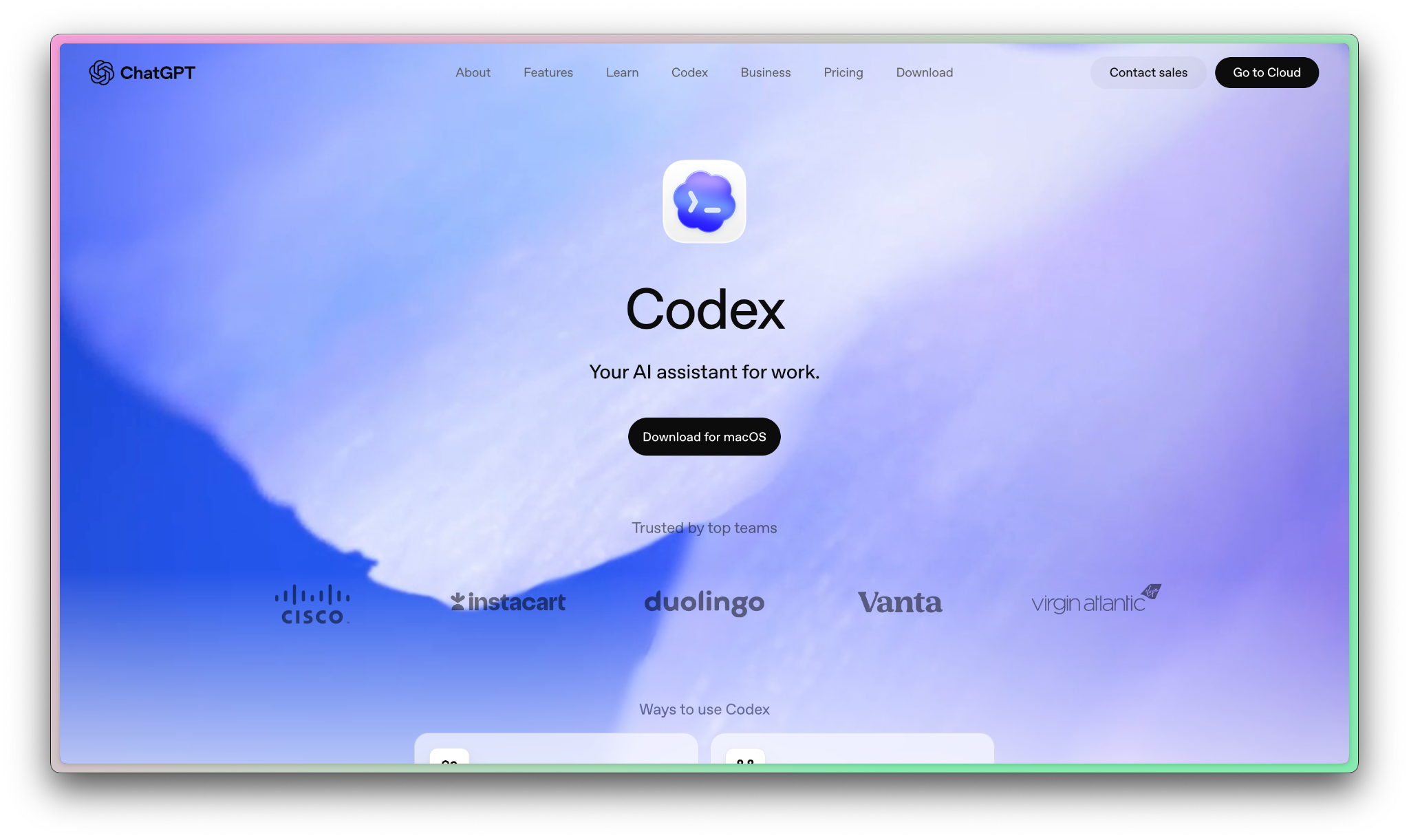
Once you open the app, take note of some core things:
A diff view that makes it really easy to see what’s changed
Awesome support for parallel agents
Worktrees so your parallel agents don’t break each other’s work
Skills (that are easier to manage than Claude Code Skills)
Built-in browser
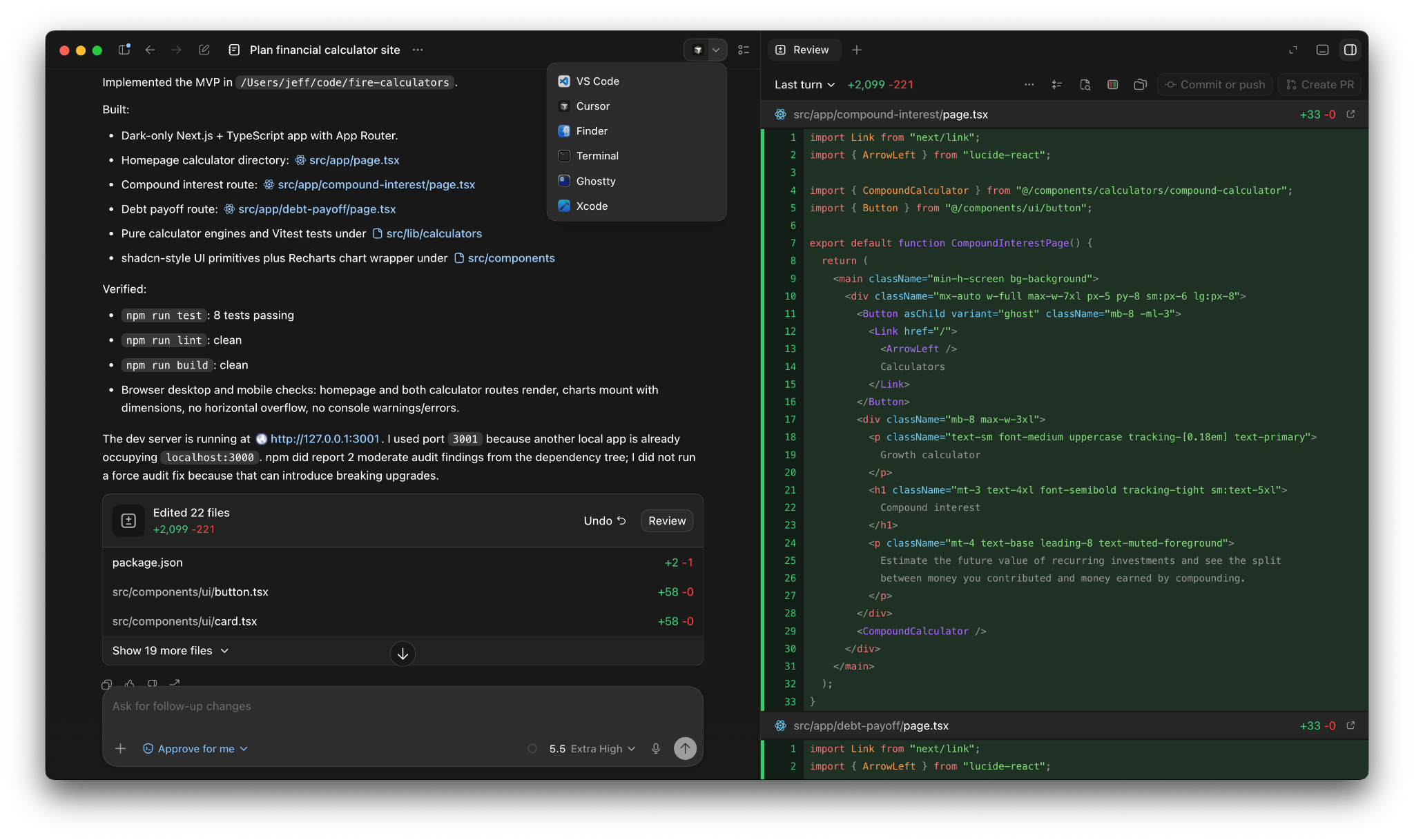
A button to open changes in your preferred IDE
These combine to make Codex an incredibly powerful tool for professional software engineering, but it doesn’t mean you need to be a software engineer to get a ton of use out of the tool. Non-technical users will find an agentic experience like that in Codex very user-friendly, though it’s a bit more challenging than vibe coding tools like Lovable.
Using Codex to build a niche financial calculator
The best way to learn Codex is to actually build something.
I use Codex to build side projects on a regular basis, and today I’ll walk you through building one from scratch.
First, open a new chat in Codex. Select the folder dropdown and select the option for creating a new project.
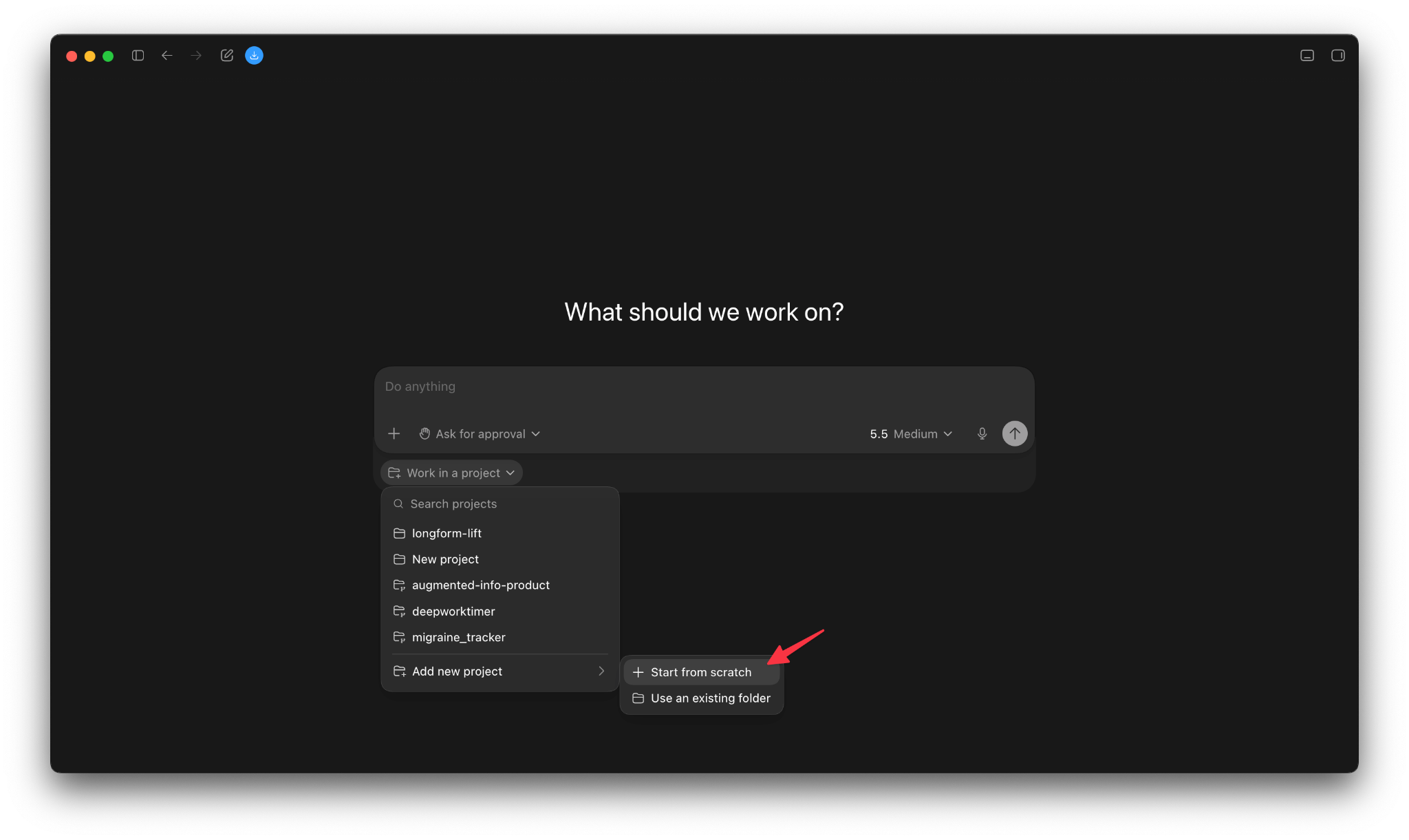
There’s an important distinction here if you’re working in an existing project!
Next, click the plus and enable plan mode.
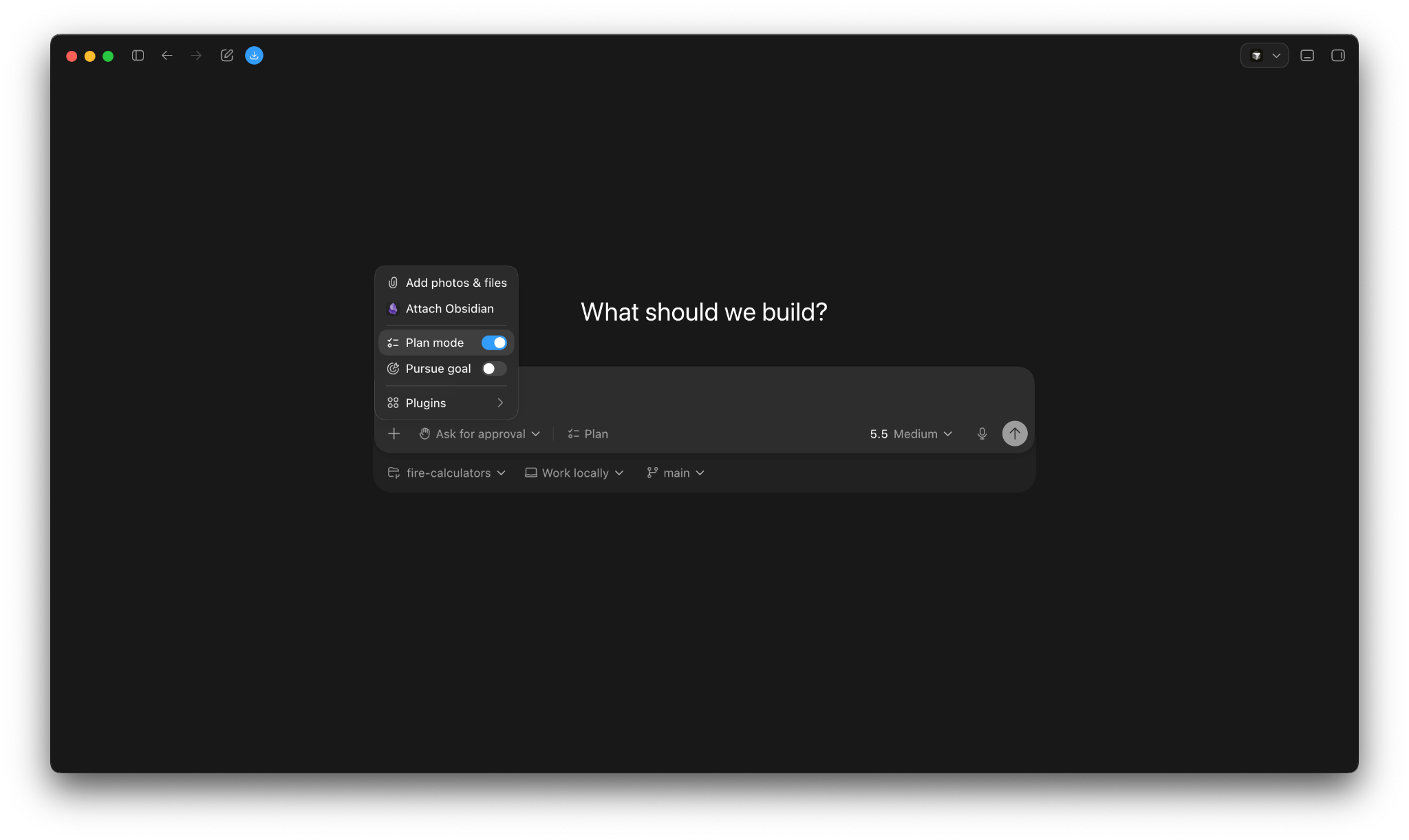
Plan mode is a great way to align a model on an implementation strategy before it starts burning tokens getting it done the wrong way. If you spend a good chunk of energy in plan mode, you’ll get a better outcome in less tokens.
Next, select the dropdown for model choice and set it to Extra High reasoning.
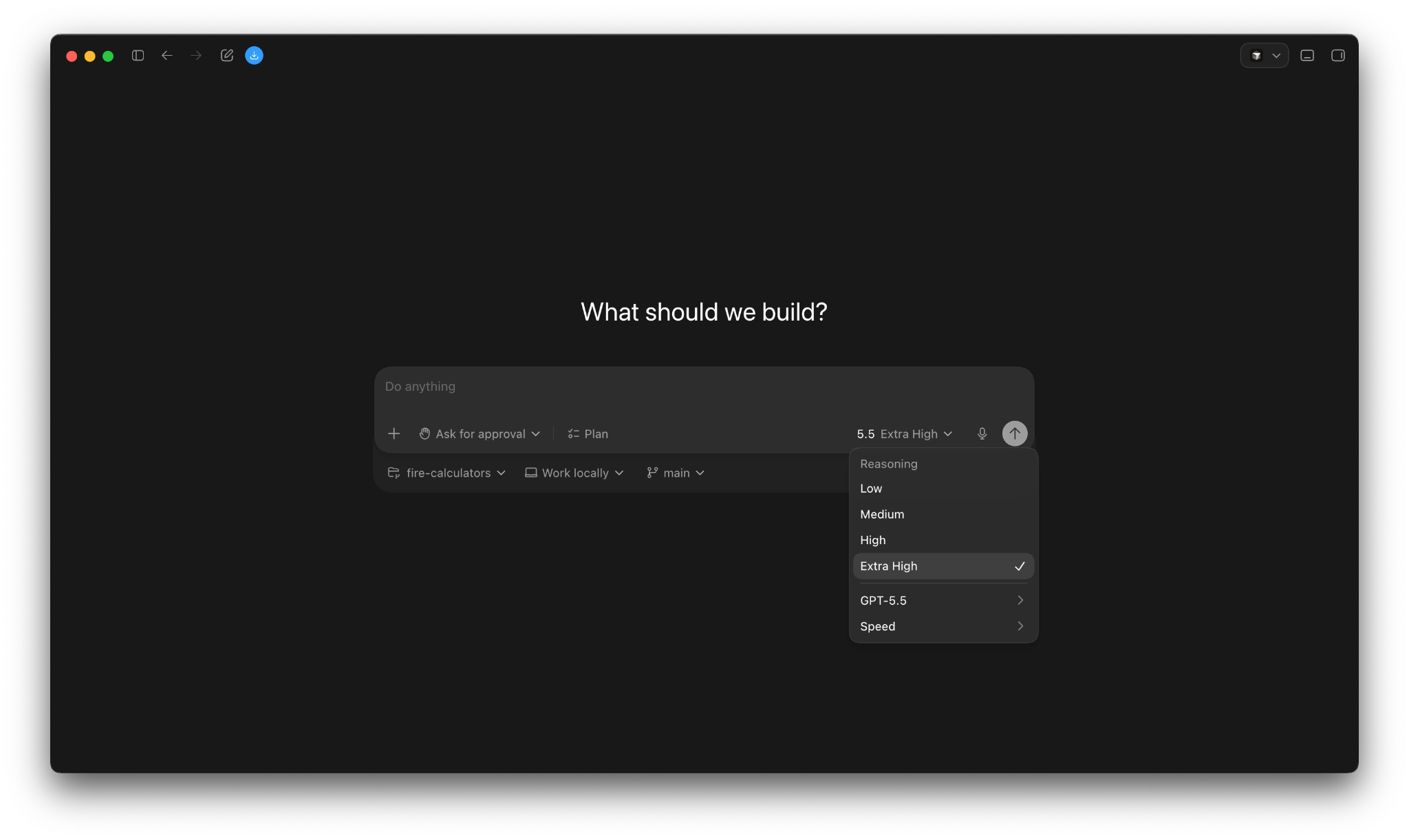
I always do this in plan mode and then downgrade reasoning after the plan is settled. The stakes are high when decisions are being made up-front, so it’s tokens well-spent.
Finally, you can start with your initial prompt. I like to describe in detail what I’d like the product to do, core features it needs to have, what is out of scope, how I want it styled, and any technical decisions I want to make up-front.
Today, we’ll be building a financial calculator themed for people pursuing the FIRE movement. Here’s the prompt I start with:
Plan out a build for a comprehensive financial calculator website.
The homepage should be clean and modern showing options for different calculators
useful for financial independence planning.

There are 2 main calculators I want to start with - one is just a compound interest calculator that shows the future value of money given a starting amount,
a regular contribution amount, a growth rate, and a time period.
That calculator should also show an incredible graph to show the value over time, segregating out contributions and earnings.

The second calculator should be an early debt payoff calculator.
The user enters in their debt amount, interest rate, time remaining, etc.
It should then allow them to toggle extra payment increases and show them how early they’d pay it off and how much money they’d save. Great graphs on this one too please.

The project should use Next.js and Typescript and be in a dark theme (no toggle for light theme).
Use Shadcn components and graphs unless you can find stuff much better.
Plan this out and ask me any questions you need.
Once you send an initial prompt like this, Codex will respond with some multiple choice questions so it can improve its understanding of your intent.
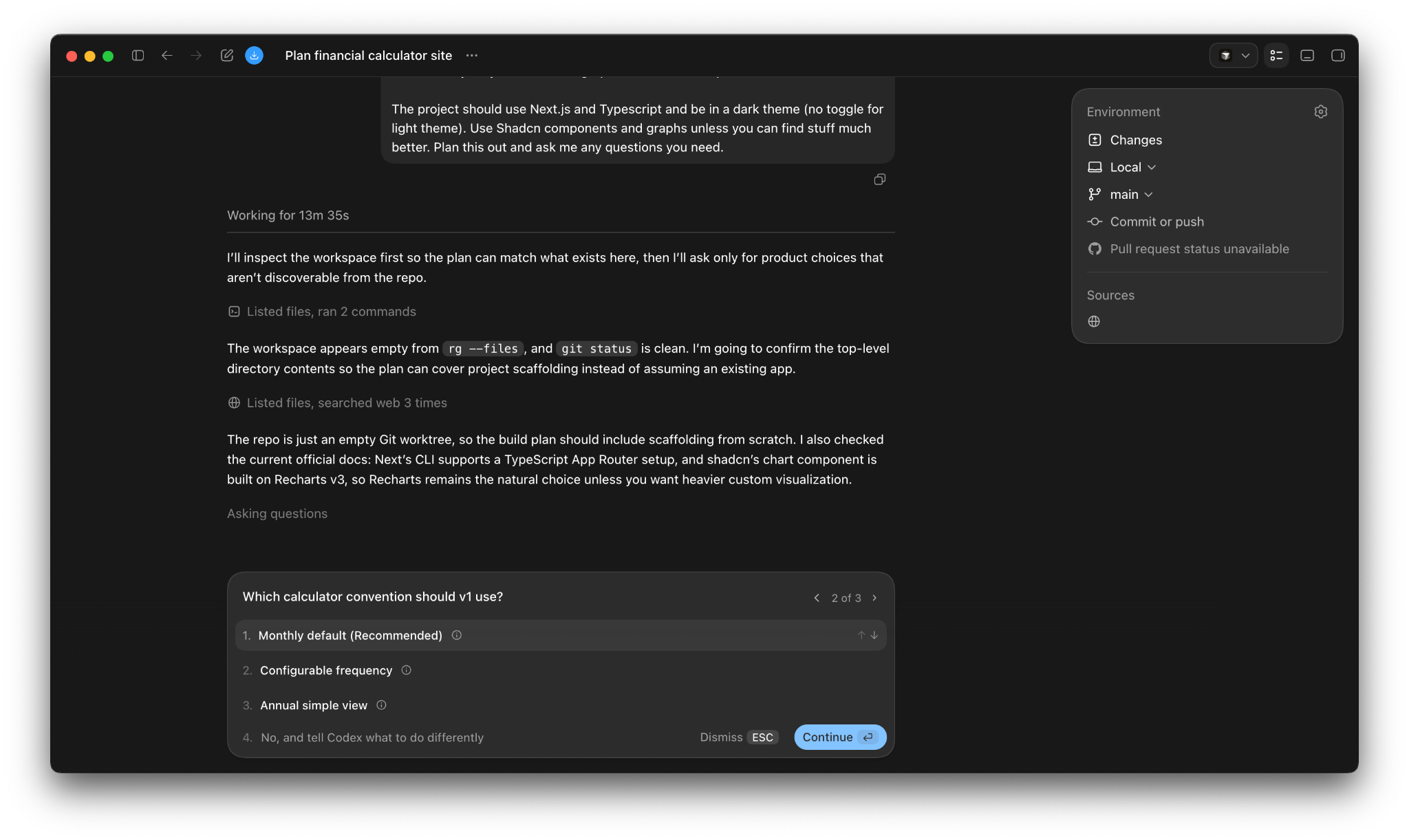
When it has what it thinks it needs, Codex will return an editable plan.
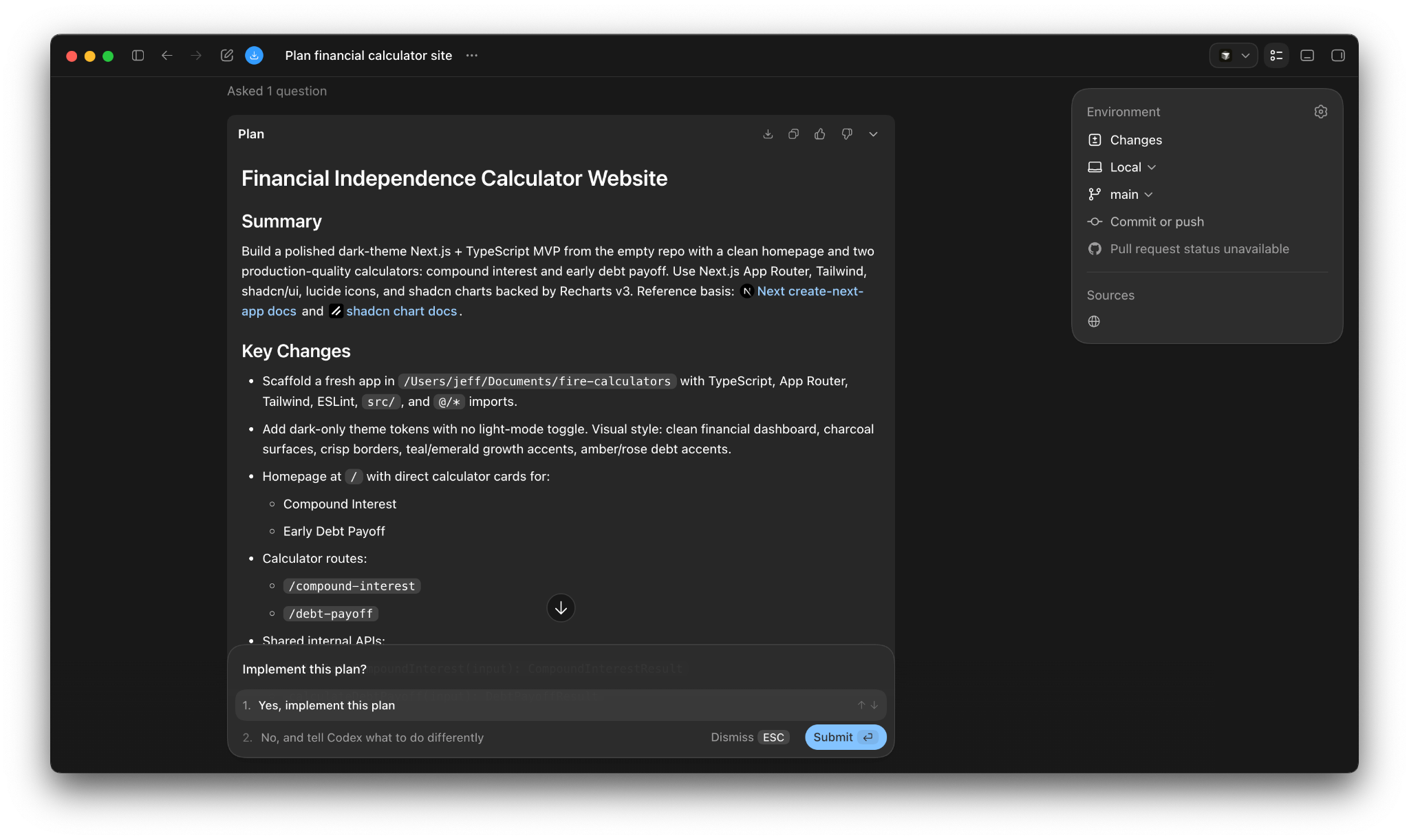
The only thing I changed about this plan was the target folder. Then I switched to a lower reasoning level (so I don’t hit token limits too fast) and had it proceed with implementation.
Codex will ask for approvals for permissions as it runs commands and writes code.
When it’s done, you’ll get a summary output that looks something like this:
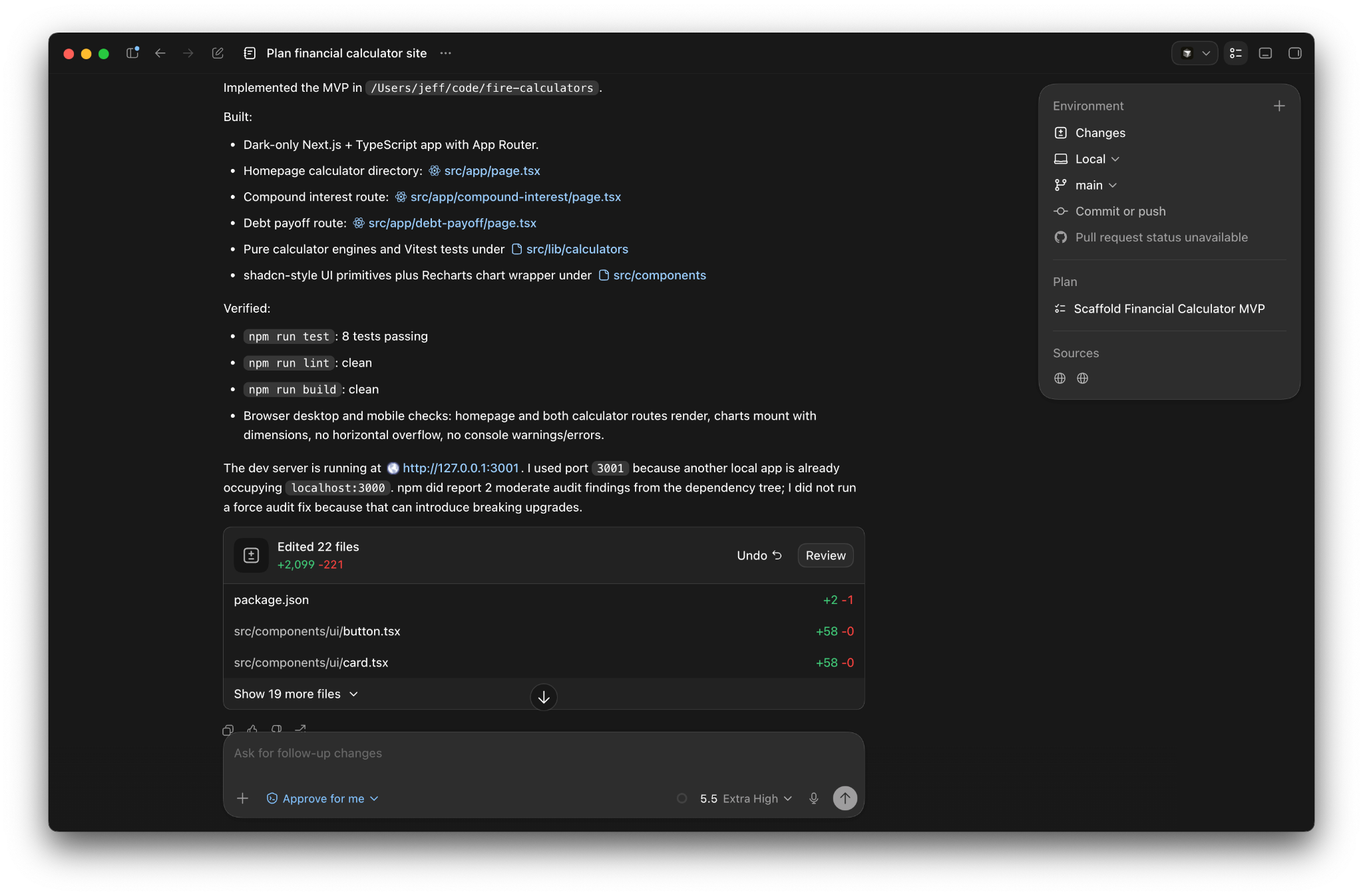
You can choose to read and understand the output or glance over it and just check the product for correctness. Your choice here is essentially the difference between AI-Augmented Engineering and vibe coding.
Both have their place! Vibe coding is essentially just using AI to write software and not bothering too much with implementation details. This is often very useful, especially if you’re not a software engineer. But it has its limits! My theory for the future of the software engineering profession is that the best developers will combine their existing skills with tools like Codex to become wildly more productive. But this means reading and understanding the output!
Codex is a great tool for software engineers and newer coders alike, so it supports both workflows. If you click the “Review” button you’ll get an easy way to view the files that were created and/or changed:
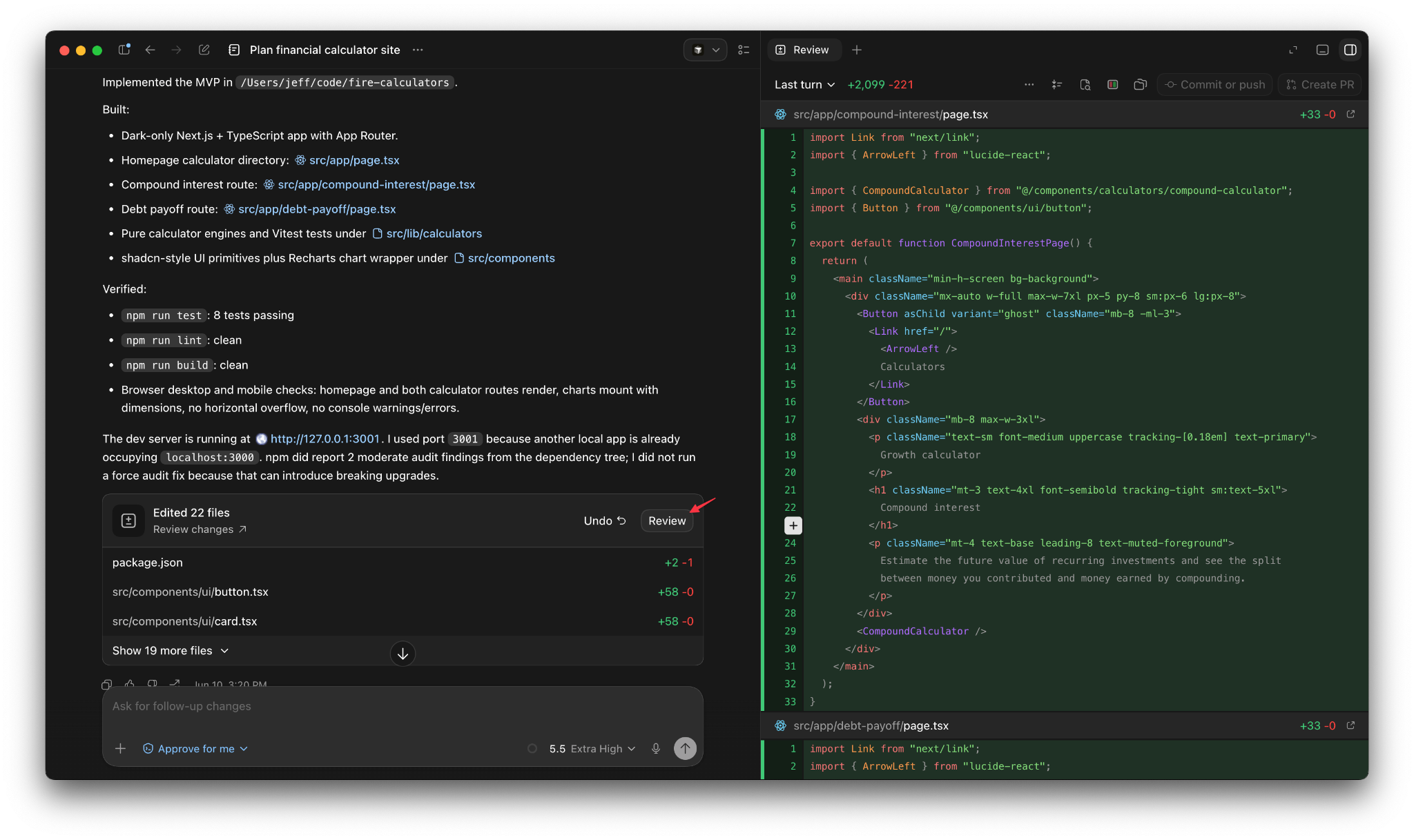
It’s hard to review tons of changes this way, so Codex also offers an easy button to open the files in an editor of your choice:
When you’re ready to actually test your app, Codex will almost always tell you how. In this case, it provides a link to the local version of the app that’s running.
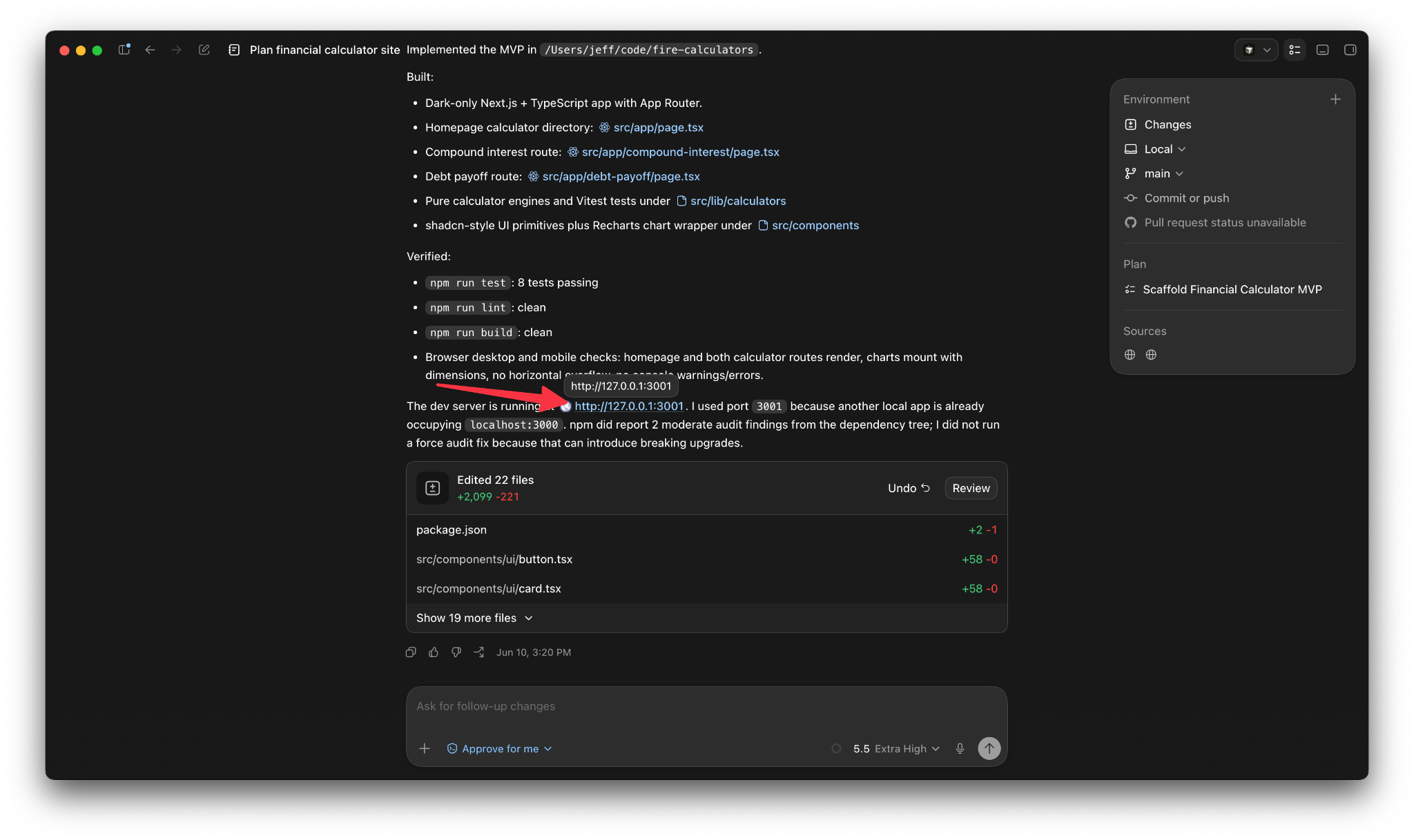
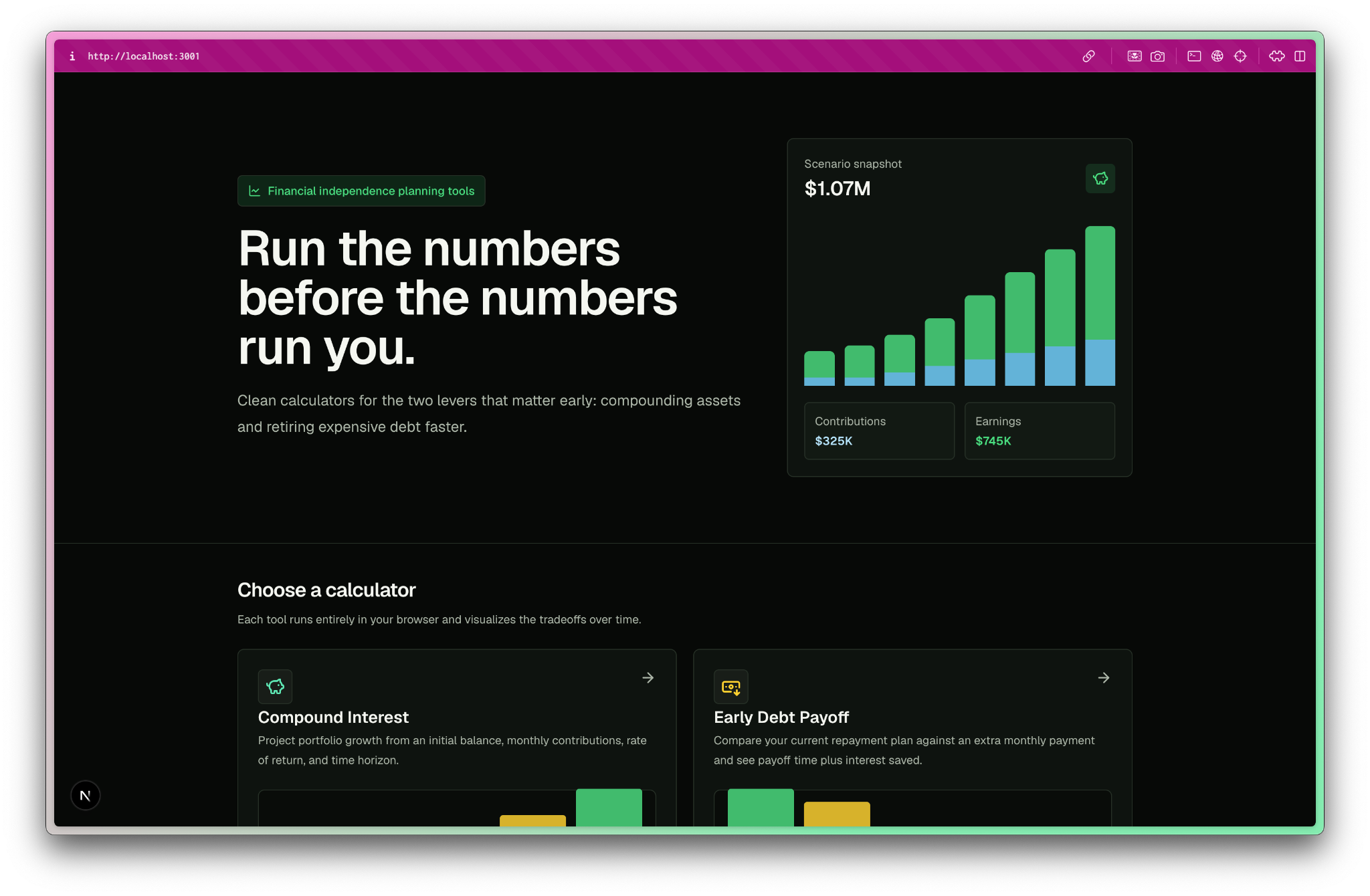
Here’s the first shot for the homepage!
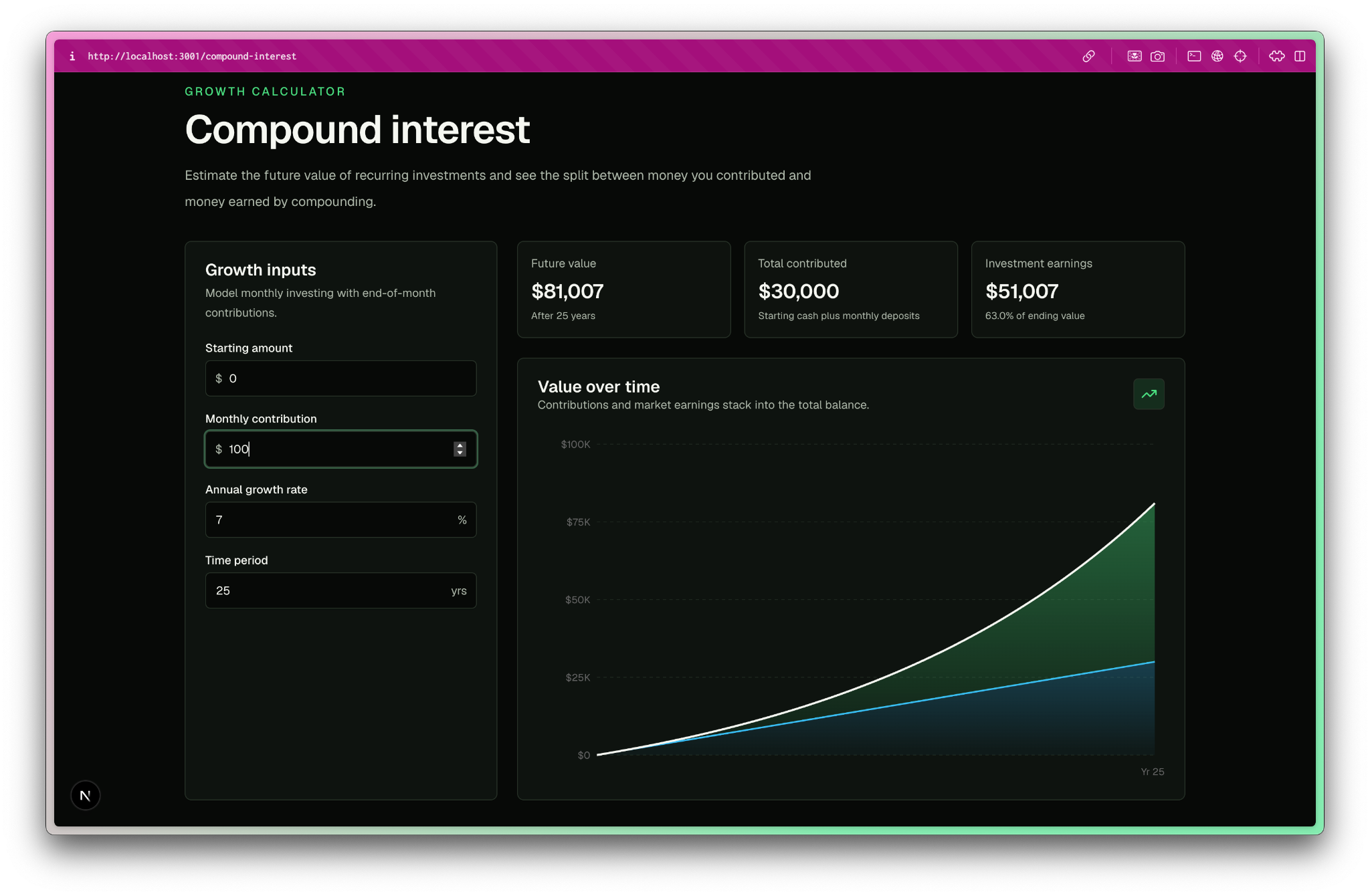
And the first shot at the compound growth calculator:
And lastly, the first shot at the debt payoff calculator:
Moving past basic builds
As you use Codex more and more, investing in your workflow will have massive returns.
The first investment you should make is in understanding how to use worktrees for parallel agent orchestration. Parallel agent orchestration is just the practice of managing multiple agents at a time. As much as I preach the benefits of monotasking, going hands-off with your agents can unlock whole new worlds of productivity.
But orchestrating several agents in the same project can cause issues. What if one agent is making changes to a file that another agent is also making changes to? This can get very difficult to manage, and git worktrees are a powerful tool to run each agent in isolation.
The second is in understanding how to use Codex goals. Today’s tutorial was very prompt-heavy. We asked Codex to do something and it did. Goals is the first step towards agent loops, and they let you go even more hands-off with your agentic software tools.
If you want to learn more detailed tactical tips for writing software using agents, I’d love to have you join me at The AI-Augmented Engineer!
Brief bio for Jeff Morhous
Jeff is a senior software engineer and developer educator. He writes The AI-Augmented Engineer to teach people how to use AI to write better code, ship faster, and level up their careers.
I love building cool stuff with codex!